AI Code Review
Azure Boards Complete Guide With Features and Best Practices (2026)

Ninad Pathak

Organic Growth
Azure Boards is the work tracking service inside Azure DevOps, sitting alongside Repos, Pipelines, Test Plans, and Artifacts. It covers a lot of ground: backlogs, sprint planning, queries, delivery plans, dashboards, Power BI feeds. You will not need most of it on day one.
What you do need is a board that mirrors how your team actually works, work items that stay current without nagging, and links between those items and the commits, pull requests, and builds that close them. That is what this guide covers: the setup decisions that are hard to undo, the exact menu paths, and the limits the docs scatter across forty pages.
What Azure Boards solves here: every team in a project gets a drag-and-drop board wired to a shared work item database. Columns map to workflow states, cards update the underlying items as you drag them, and the same items link directly to branches, PRs, and builds. Configure it once and status reporting becomes a side effect of doing the work.
What you’ll learn
How to choose between the Basic, Agile, Scrum, and CMMI processes, and why this decision is permanent
Where boards live in the UI and how team structure controls how many boards you get
How to map columns, split columns, WIP limits, and Definition of Done to your real workflow
How swimlane rules route work automatically, and their hard limits
The exact syntax that links commits and PRs to work items, including the
AB#rules that silently failWhich flow metrics the board gives you for free
How do you set up and run a board in Azure Boards?
When you create a project, you choose a process. It determines your work item types and workflow states, and you cannot change the base process later. Your options if you outgrow it are customizing an inherited process or creating a new project and moving work items over. Choose deliberately.
Process | Work item types | Default states |
|---|---|---|
Basic | Epic, Issue, Task | To Do, Doing, Done |
Agile | Epic, Feature, User Story, Task, Bug | New, Active, Resolved, Closed, Removed |
Scrum | Epic, Feature, Product Backlog Item, Task, Bug, Impediment | New, Approved, Committed, Done, Removed |
CMMI | Epic, Feature, Requirement, Task, Bug, Change Request, Risk, Review | Proposed, Active, Resolved, Closed |
Basic fits small teams that want three item types and nothing else. Agile fits teams that track user stories and treat bugs separately from requirements. Scrum gives you Product Backlog Items plus Approved and Committed states that map onto sprint ceremonies. CMMI adds Change Requests, Risks, and Reviews for regulated environments that need an audit trail, and note that it ships without a Removed state.
Kanban vs Scrum boards in Azure DevOps
Azure Boards does not force a working style choice at project creation. Every process ships both views of the same work items.
Kanban board | Sprints hub (Scrum) | |
|---|---|---|
Cadence | Continuous flow, no timeboxes | Fixed-length iterations |
Where it lives | Boards > Boards | Boards > Sprints |
Tooling | WIP limits, cumulative flow diagram | Taskboard, capacity planning, burndown chart |
Best for | Teams that pull work as capacity frees up | Teams that forecast by velocity |
Plan in sprints and run the day on the board if you want a mix. The same work items stay current in either view.
Open your team board
Select Boards > Boards in the left navigation and pick your team from the selector at the top. Check the backlog level next to the team name: Stories for Agile, Backlog items for Scrum, Requirements for CMMI. Portfolio-level boards for Features and Epics live in the same dropdown.
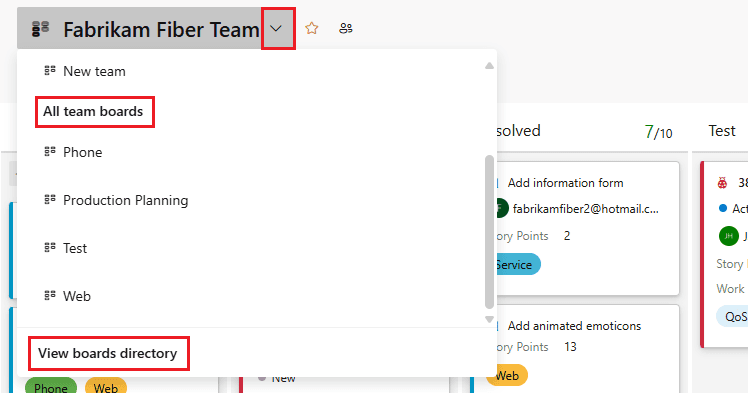
The team selector lists every team board in the project. Source: Microsoft Learn.
One structural fact drives everything else. Each team in a project gets exactly one board per backlog level. There is no “new board” button. If you need another board, create another team under Project settings > Teams > New team, check “Create an area path with the name of the team”, and the new team gets its own backlog, board, and sprints scoped to that area path. Until a team has a default area path assigned, its board tools will not load.
Add work items and keep them moving
On the board, select the add icon (+) at the top of the first column, type a title, and press Enter. The item saves automatically. Edit any field shown on the card inline, or select the title to open the full form for description, acceptance criteria, priority, tags, and estimates.
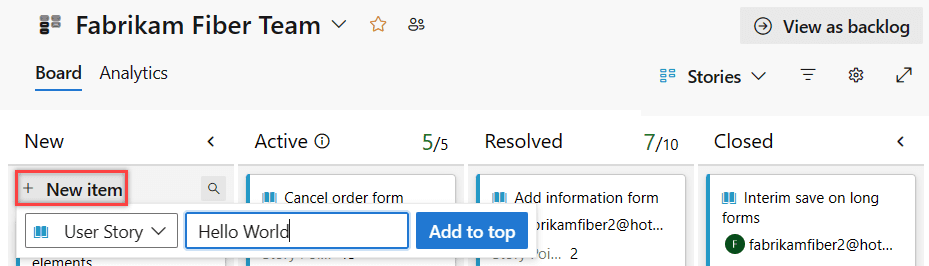
New items land at the top of the first column. Source: Microsoft Learn.
Drag cards between columns to change state, and up or down within a column to change priority. A few mechanics worth knowing before your team relies on the board:
One assignee per item. The Assigned To field takes a single user. If three people share a story, split it into tasks.
Closed items age out of view. On Azure DevOps Services, items whose Changed Date is older than 183 days disappear from boards and backlogs. They still exist and remain queryable. Any small edit brings them back.
Attachments have limits. Up to 100 attachments per work item, 60 MB per file.
Scripting works.
az boards work-item createhandles bulk item creation when you are migrating from another tracker.
The CLI ships as the azure-devops extension for az. Install it once and the whole az boards command group is available.
az extension add --name azure-devops
az boards -h
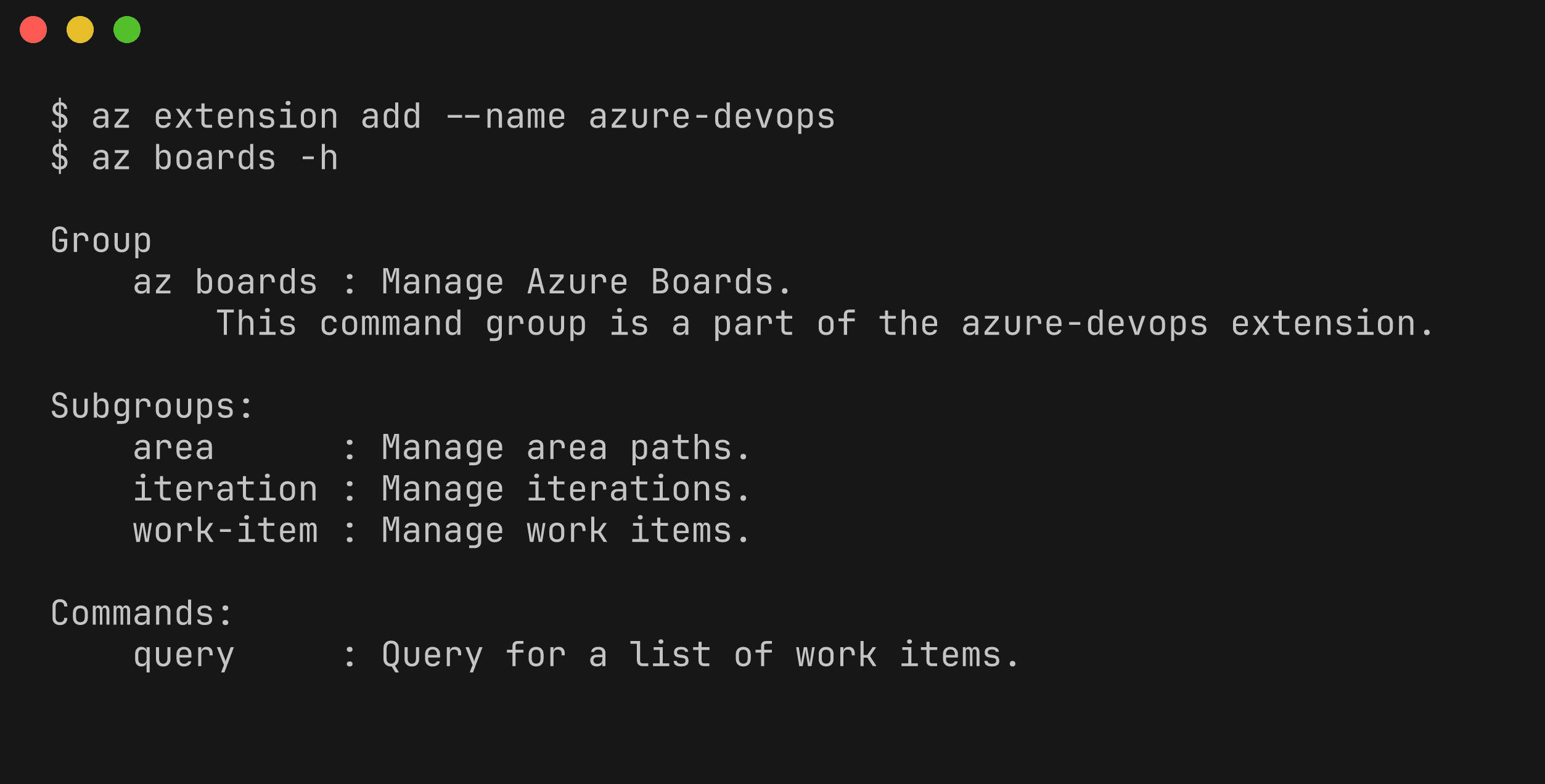
Those two commands run unauthenticated. Anything that reads or writes real work items needs a sign-in first, either az login or a personal access token via az devops login.
Map columns to your real workflow
Default columns match the process states, and process states rarely match how work actually flows. Select Configure board settings (the gear icon on the board) > Columns to fix that. Add a column with + Add column, rename columns to your stages (Design, Develop, Review, Deploy), and reorder by dragging the column tabs.
Two rules from the column configuration docs prevent most confusion:
Every workflow state must map to a column. Unmapped states make items vanish from the board. The first column auto-maps to the default state, and Completed-category states can only map to the last column.
Only team admins or project admins can change board settings. Everyone with Basic access can move cards.
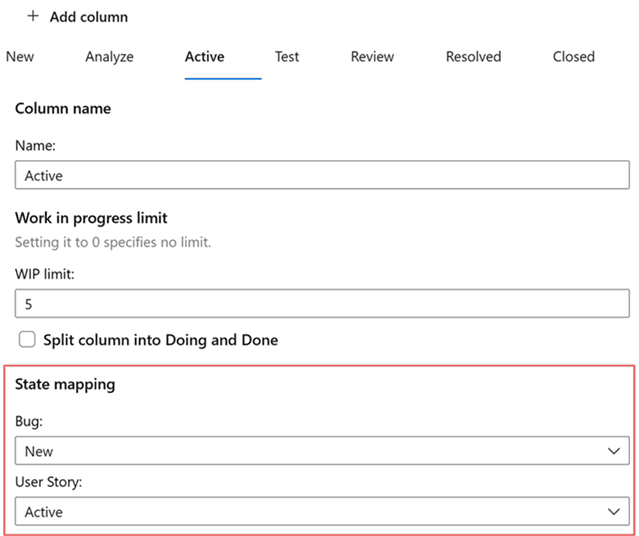
Each column maps every work item type’s state. Unmapped states hide items. Source: Microsoft Learn.
Then make handoffs visible:
Split columns divide a stage into Doing and Done sub-columns. A card sitting in “Develop / Done” is finished work nobody has pulled into review yet. That pile is your bottleneck, and you can query it with the Board Column Done field.
WIP limits put a number on each column. Exceed it and the count turns red. Start with your team size plus a small buffer and tighten from there.
Definition of Done attaches exit criteria to each column, visible behind the info tooltip on the column header. This is where “code reviewed and merged” belongs, written down instead of assumed.
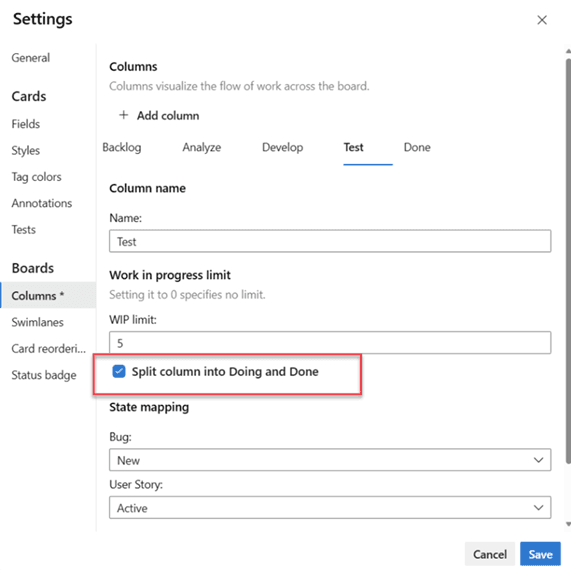
WIP limit and the Doing/Done split live in the same column settings pane. Source: Microsoft Learn.
Add swimlanes and routing rules
Swimlanes cut the board horizontally so classes of work stay separated: a High Priority lane for urgent fixes, a lane for tech debt, a lane per dependency. Open Configure board settings > Swimlanes, select Add swimlane, name it, and assign a color. A board supports up to 50 lanes, and the default lane can be renamed but never deleted.
Swimlane rules place items into lanes automatically. On a lane, select + Add criteria and set field, operator, and value, for example Priority = 1 routes into High Priority. The limits, per the current docs: five rules per lane, 25 rules per board, AND conditions only, and no rules on the default lane. Rules evaluate in order, first match wins, and manual drags into a rule-managed lane are restricted to items that satisfy the rule.

Rules route items into lanes by field criteria. The default lane takes no rules. Source: Microsoft Learn.
Link work items to code
A board that tracks planning but not code answers half the question. Azure Boards closes the loop through the Development section on the work item form.
For Azure Repos, start work by selecting Create a branch in the Development section. The branch links automatically, the eventual PR links when you create it from the same section, and the merge shows up on the work item. Pull requests are where the linked work actually gets judged, so it pays to run an automated review pass there. CodeAnt AI reviews Azure DevOps PRs as they open, running review comments and SAST security checks in the same pass, so the human reviewer starts from findings instead of a cold diff. The SmartBear study of Cisco’s code reviews found defect detection drops once a review exceeds roughly 400 changed lines, and small work items linked to small PRs are the practical way to stay under that.
For GitHub repositories, install the Azure Boards app for GitHub, then use AB# mentions. The syntax rules are strict and silent when you get them wrong:
AB#123links only from a commit message or a PR/issue description. In a PR title or comment it does nothing.Fixes AB#123transitions the item to the first Resolved-category state (or Completed if none exists) when the PR merges to the default branch. Merges to other branches link but never transition.Fixes AB#123, AB#124transitions only the first item. WriteFixes AB#123, Fixes AB#124to transition both.A state name works too, so
Closed AB#123moves the item to Closed.
A working commit looks like this, with the AB# mention in the message body.
git commit -m “Enforce WIP limit check on the Review column
Fixes AB#4021”
[main 1947b47] Enforce WIP limit check on the Review column
1 file changed, 2 insertions(+)
create mode 100644 board_rules.py
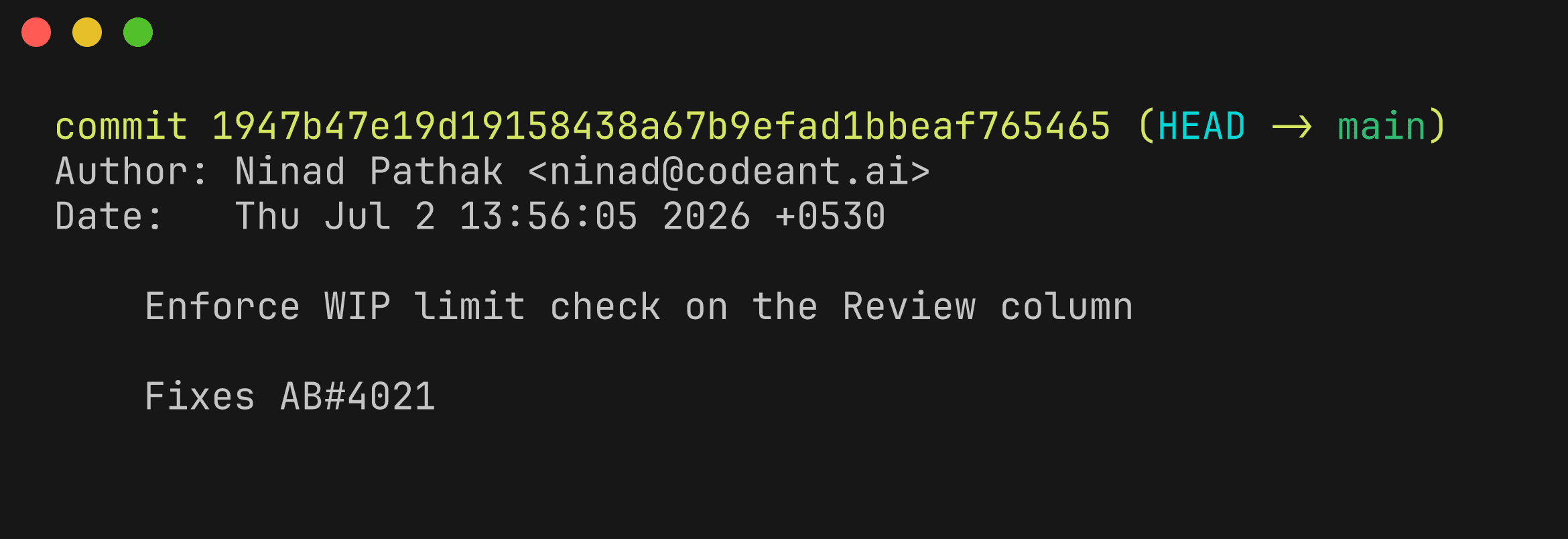
Once the commit is pushed, the link shows up in the work item’s Development section, alongside any PRs that mention it.
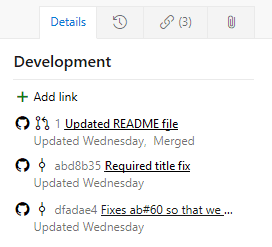
GitHub commits and PRs listed on the work item after an AB# mention. Source: Microsoft Learn.
Linked GitHub PRs also surface draft, review, and checks status directly in the Development section. For build traceability, open your YAML pipeline settings and enable “Automatically link work items included in this run” to get Integrated in build links, and see the Azure DevOps pipeline guide for the pipeline side of that handshake.
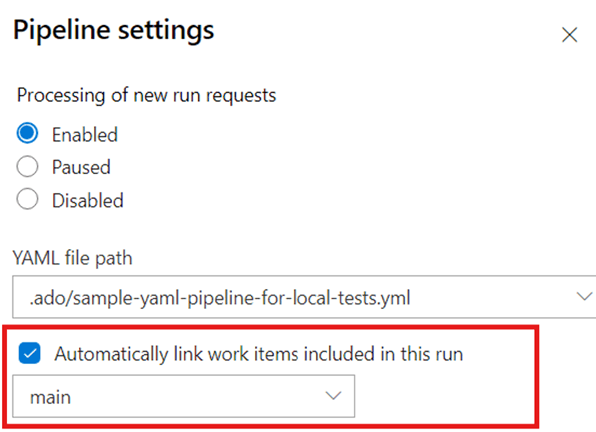
The auto-link setting sits in the pipeline’s settings pane, scoped to one branch. Source: Microsoft Learn.
Read the flow metrics
The board carries its own Analytics tab. Select View full report under the cumulative flow diagram to see items per column over time. A widening band is a stage taking on more than it finishes, and it usually shows up there before anyone says the word “blocked” in standup.
Dashboards take the same data as widgets: sprint burndown, velocity, cycle time, lead time. For anything heavier, Analytics views feed Power BI directly. Board metrics tell you where work queues up. Pair them with delivery metrics like deployment frequency and change failure rate, covered in the DORA metrics guide, and you can tell the difference between a planning problem and a shipping problem.
Edge cases worth planning for
One work item on two boards. Items in an area path shared by multiple teams appear on multiple boards, and each board tracks its own Board Column, Board Column Done, and Board Lane values. Team A dragging an item to their Done column does not move it on Team B’s board. Scope area paths so each item has one owning team, and treat other teams’ views as read-only.
Stakeholder licenses are more limited than they look. Stakeholder access is free and unlimited, which makes it tempting for anyone outside engineering. In a private project, Stakeholders can create work items and drag cards between columns but cannot edit the fields displayed on cards. If a product manager needs to set priority or story points, they need Basic. As of July 2026, Basic is free for the first five users and $6 per user per month after that, per the Azure DevOps pricing page.
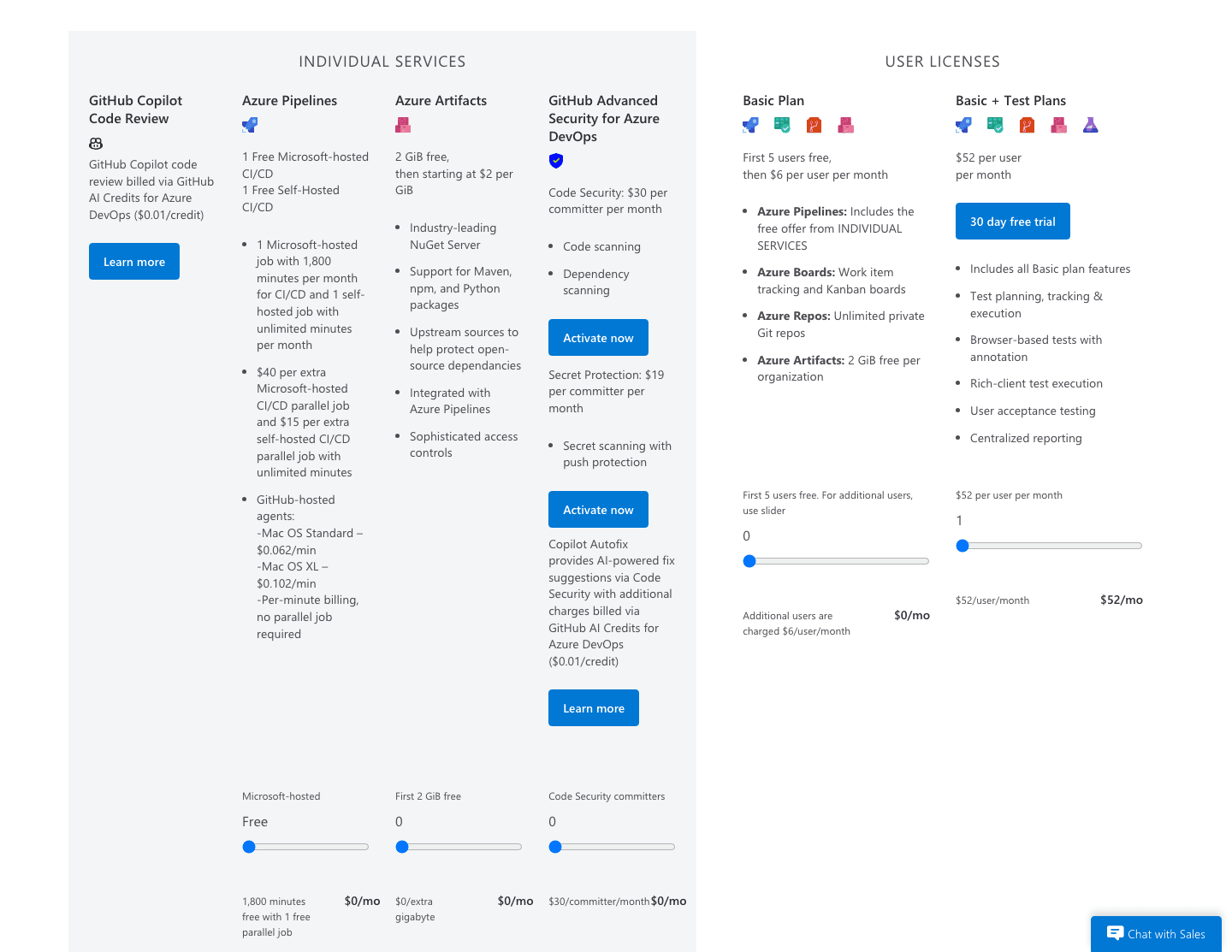
User license pricing as of July 2026. Source: azure.microsoft.com.
Self-hosted Azure DevOps Server lags the cloud. The closed-item cutoff is one year on Server against 183 days on Services, the New Teams management page is cloud-only, and swimlane rules depend on your Server version. Verify features against your version’s docs before promising them to the team.
Process customization has a blast radius. Adding states or custom work item types happens in an inherited process at the organization level, and it needs Project Collection Administrator rights. Every new state you add must be mapped to a column on every team’s board that shows the type, or items in that state disappear from those boards.
Done on the board versus done in the code. A card in the last column asserts that the work merged and the checks passed. That assertion is only as good as the gates on the PR. Branch policies with required reviewers and build validation, covered in the Azure DevOps branch policies guide, plus an automated review layer like the one described in the Azure DevOps AI code review guide, make the Done column mean something without anyone auditing it manually.
Azure Boards best practices checklist
These are the best practices that keep a board honest, grouped by where they apply.
Project structure
Process chosen deliberately: Basic, Agile, Scrum, or CMMI, knowing the base process is permanent.
One team per real team: each gets its own board, backlog, and sprints via its area path.
Area paths assigned: no team tools work until the default area path is set.
Board hygiene
Columns match actual stages: every workflow state mapped, nothing invisible.
WIP limits set: red column counts beat status meetings at spotting overload.
Split columns where handoffs happen: idle cards in a Done sub-column expose the bottleneck.
Definition of Done written per column: exit criteria live in the tooltip, not in tribal memory.
Swimlane rules within limits: five per lane, 25 per board, AND-only conditions.
Traceability
Branches created from work items: the Development section links them automatically.
AB#syntax placed correctly: commit messages and PR descriptions only,Fixesrepeated per item.Pipeline linking enabled: “Automatically link work items included in this run” on YAML pipelines.
PR gates enforced: branch policies plus automated review, so the last column stays honest.
Where this leaves you
A board configured this way runs itself. Columns mirror the real workflow, rules sort the incoming work, and every card carries links to the branch, PR, and build that prove its state. The highest-leverage habit is linking work items to code from day one, because traceability added retroactively never gets backfilled. The work items end their life in a pull request, and that half of the loop, policies, reviewers, and merge strategies, is covered in the Azure DevOps pull request guide.
FAQs
Is Azure Boards free?
Can I create multiple boards in one Azure DevOps project?
How do I link work items to commits and pull requests?
How does Azure Boards compare with Jira?
Can I change the process after creating a project?