


Cursor crossed $1 billion ARR in under two years. GitHub Copilot quietly hit 4.7 million paid subscribers and 90% of Fortune 100 adoption. Windsurf got acquired by Cognition for $250 million after Google poached its founding team for $2.4 billion. Three tools, three very different bets on how developers will write code.
Picking the wrong AI code editor costs more than the subscription fee. It costs hours per week in friction, context that doesn't load, and agentic workflows that half-work on your codebase. This comparison breaks down what each tool actually delivers in April 2026, where each one falls short, and which one fits the way your team works, with real benchmark data and no marketing fluff.
What are AI Code Editors?
Coding has come a long way, and AI code editors are stepping in to make the process faster, smarter, and easier. What started as simple autocomplete tools has evolved into powerful assistants that can generate, debug, and review entire code segments.
The journey began with early tools like Ghost Text in 2015, which allowed seamless editing between browsers and text editors - though it wasn’t AI-driven, it paved the way for smarter coding workflows. By 2021, GitHub Copilot revolutionized the industry with its AI-powered code completion, bringing machine learning models directly into IDEs like VS Code.
Today, tools like Cursor, Windsurf, and Copilot are transforming how developers write, debug, and manage their code. These AI-powered editors go beyond simple autocomplete - they understand your project’s context, suggest entire code blocks, and even help review your code for errors.
However, there's a key distinction: Cursor and Windsurf are full-fledged IDEs (forks of VS Code), while GitHub Copilot is a VS Code extension rather than a standalone IDE. This difference shapes how each tool fits into your development workflow.
As more developers embrace these tools, it's important to know which one best fits your coding style and needs. In this guide, we’ll break down their features, strengths, and ideal use cases to help you decide which AI code editor reigns supreme.
The Quick Verdict: Who Wins and For Whom
Cursor wins for teams doing complex, multi-file agentic coding on large codebases. GitHub Copilot wins for enterprise teams that need compliance, the widest IDE coverage, and GitHub-native workflows. Windsurf wins on value, roughly 80% of Cursor's capability at a lower price point, with strong EU compliance. There is no single best tool. The right answer depends entirely on what your team actually does.
If you're evaluating other tools beyond these three, see our guide to the GitHub Copilot alternatives for VS Code
Cursor | Windsurf | GitHub Copilot | |
|---|---|---|---|
Best for | Complex multi-file agentic work | Value + EU compliance | Enterprise + GitHub teams |
Starting price | $20/month | $15/month | $10/month |
Enterprise | Custom pricing | Custom + on-premise | $39/user/month |
IDE support | VS Code fork | VS Code + JetBrains | VS Code, JetBrains, Xcode, Neovim, Visual Studio |
Code acceptance rate | 72% | ~68% | 65% |
SOC 2 | Yes | Yes | Yes |
On-premise option | No (BYOK available) | Yes (Enterprise) | GitHub Enterprise Server |
Agent mode | Yes, Composer + Automations | Yes, Cascade | Yes, Coding Agent |
JetBrains support | Since March 2026 | Yes | Yes (mature) |
Free tier | No | Yes | Yes (limited) |
Core Capabilities: The Essentials Every Developer Needs
AI code editors thrive on their core features - the tools that make coding faster and more efficient. From smart auto-completion to intelligent code suggestions, these capabilities are designed to reduce manual effort and improve code quality. These are the building blocks that shape a seamless development experience.Today’s top editors - Cursor, Windsurf, and GitHub Copilot - each approach core features like auto-completion, inline suggestions, and multi-file editing in their own way.
Cursor
Cursor is an AI-first VS Code fork built by Anysphere. It leads on raw AI capability: its Composer agent mode handles complex multi-file changes, its semantic indexing understands your full repository, and its 72% code acceptance rate is the highest of any tool in this comparison. It is the tool of choice for engineers doing heavy, autonomous feature development. The tradeoff is cost: Pro runs $20/month, Max is $200/month, and it requires switching away from your current IDE.
What Cursor does better than anyone else
Codebase understanding is Cursor's core advantage. When you ask "how does authentication work in this repo?", Cursor indexes the entire repository and finds the actual answer, not a generic response. Competing tools without repo-level indexing give advice that often misses how your specific codebase is structured.
Composer is the feature that separates it from everything else. Cursor’s previous Composer Mode has now been replaced with Agent Mode and Edit Mode. While these serve similar purposes, they improve the overall experience:
Agent Mode acts as an intelligent assistant that handles complex, multi-step changes. For instance, it can refactor code, apply bulk updates across multiple files, or even automate repetitive edits.
Edit Mode offers a simpler interface for applying targeted changes to your code - much like Composer’s standard functionality but with improved control and clarity.
You describe a multi-file change in plain English, and Cursor edits across files simultaneously. In a standardised March 2026 test by iBuildR Research, Cursor built a responsive data table component in 2 rounds of prompting. Windsurf needed 3, GitHub Copilot needed 5 with manual fixes. On a more complex task, migrating a 3,000-line Express.js codebase from CommonJS to ESM, Windsurf's Cascade completed it in one attempt with 2 test failures out of 47. Cursor took 3 attempts.
The Automations feature (launched late 2025) runs background agents on scheduled tasks, refactoring, test generation, dependency updates, while you work on something else. Parallel subagents let you run multiple tasks simultaneously. Cloud agents handle GitHub issues autonomously without keeping your laptop open.
Cursor's real weaknesses
The cost is real. Max plan at $200/month per developer adds up fast for large teams. JetBrains support only arrived in March 2026 and is less mature than Copilot's years-old plugin. For privacy-sensitive work, Cursor's Privacy Mode prevents code from leaving your machine, but Enterprise-grade guarantees (SOC 2, zero data retention contracts) require the Business plan. And if your team isn't doing complex multi-file work, if most of your AI interactions are autocomplete and small edits, you're paying a premium for capabilities you won't use.
Who should choose Cursor
Teams doing heavy autonomous coding on large codebases, developers who work primarily in VS Code and want the most powerful AI tool available, and engineering leads who care more about capability ceiling than cost predictability. A 9-person startup that tested all three tools for 30 days each saw Cursor deliver 1.42x productivity improvement on complex multi-file features versus the GitHub Copilot baseline.
During this, all I was doing was hitting Tab over and over - smooth, effortless, and fast.These modes make Cursor particularly strong for developers managing complex projects that require precision and flexibility.
Windsurf
Windsurf is an AI-first IDE built by Codeium that introduced Cascade, an agentic flow engine with real-time awareness of your actions, when it launched in late 2024. It delivers roughly 80% of Cursor's capability at 75% of the price. The Pro plan is $15/month. There is a free tier. EU compliance and FedRAMP High certification make it the strongest compliance story outside of GitHub Copilot. The complication: Windsurf changed ownership three times in one month in early 2026, and the long-term product direction post-Cognition acquisition is uncertain.
What Windsurf does better than anyone else
Cascade is Windsurf's defining feature. It doesn't just suggest code, it actively reads files, runs terminal commands, observes output, and iterates until a task is done. It requires less steering than Cursor's Composer, which means it's the better pick for developers who want to delegate longer autonomous tasks and step away. In the CommonJS-to-ESM migration test, Windsurf's Cascade completed the job on the first attempt with only 2 test failures, outperforming Cursor on that specific autonomous, large-scope task.
Flow-state awareness is the other differentiator. Windsurf tracks what you're doing in real time, if you rename a variable, it notices and offers to update it everywhere in the project. This contextual awareness makes it feel more like a collaborative tool than a query-and-response one.
The free tier and pricing are genuinely competitive. Windsurf offers a free tier with base model access, Pro at $15/month, and Pro Ultimate at $60/month. For teams evaluating AI tools before committing, this removes the barrier.
Windsurf's real weaknesses
The acquisition uncertainty is the biggest issue for enterprise buyers right now. Windsurf changed owners in rapid succession, and procurement teams evaluating enterprise software need vendor stability. The enterprise story is also less mature than Copilot's, Cursor and Windsurf both offer custom enterprise pricing, but Copilot's Microsoft-backed compliance certifications and existing enterprise agreements are harder to match. For teams with strict procurement processes, this matters.
Who should choose Windsurf
Developers who want Cursor-level agentic capability at a lower price, teams where EU compliance and FedRAMP certification are requirements, and engineering teams doing primarily autonomous, longer-horizon tasks where Cascade's lower-intervention approach is an advantage. For solo developers and small teams shipping MVPs, Windsurf at $15/month is hard to beat on value. For large enterprises, wait for the acquisition dust to settle.
GitHub Copilot
GitHub Copilot is an AI coding assistant from GitHub and OpenAI. It works as an extension across VS Code, JetBrains, Xcode, Neovim, Visual Studio, and Eclipse, no other tool in this comparison comes close on IDE coverage. It has 4.7 million paid subscribers, 20 million total users, 42% market share, and 90% of Fortune 100 adoption. The Coding Agent (launched 2025, updated 2026) autonomously handles GitHub issues from issue to pull request. Business tier is $19/user/month, Enterprise is $39/user/month.
For a comparison of CodeAnt vs GitHub Copilot, see our blog.
What Copilot does better than anyone else
IDE breadth is Copilot's first and clearest advantage. Cursor and Windsurf are VS Code forks. If your team uses JetBrains, IntelliJ, PyCharm, WebStorm, GoLand, Copilot is your only mature option among these three. Cursor added a JetBrains plugin in March 2026 but it's newer and less polished.
The GitHub ecosystem integration is the second advantage. The Coding Agent receives a GitHub issue, autonomously writes code, creates a pull request, self-reviews its own changes, and runs security scans. A Jira integration launched in March 2026. For teams whose entire workflow lives in GitHub, issues, PRs, CI/CD, this pipeline requires no context switching. Cursor and Windsurf don't have anything equivalent.
Enterprise compliance is the third. GitHub Copilot Enterprise is backed by Microsoft's existing enterprise agreements, SOC 2, IP indemnity, audit logs, SAML SSO, and a compliance story that procurement teams at regulated companies can actually sign off on. For healthcare, finance, and government teams, this matters more than code acceptance rate. Copilot Enterprise's FedRAMP-authorised version is available for government contractors.
Copilot's real weaknesses
Context window and codebase understanding are genuinely weaker than Cursor and Windsurf at the baseline level. JetBrains State of Developer Ecosystem 2025 found 67% of developers hit context limits regularly on multi-file tasks, Cursor and Windsurf handle this better. Copilot Chat without repo-level context gives more generic responses than Cursor's semantic indexing. On the iBuildR Research benchmark, Copilot needed 5 rounds of prompting to complete the same UI component task Cursor handled in 2. The individual Pro plan at $10/month may use code snippets for model training, you need the Business tier ($19/user/month) for code exclusion from training and IP indemnity.
Who should choose Copilot
Enterprise teams in regulated industries where Microsoft's compliance story matters, JetBrains users who can't switch IDEs, teams whose workflow is entirely GitHub-native and want the issue-to-PR agent pipeline, and budget-conscious teams where $10/month individual or $19/user/month business is the easiest enterprise procurement approval. A 9-person startup test showed Copilot at 1.0x baseline productivity, slower than Cursor's 1.42x on complex multi-file work, but far more predictable in enterprise environments.
With Copilot, I found the autocompletion to be fast and accurate - easily on par with Cursor.With Edits, you define your working set of files, describe the changes you want in plain English, and Copilot makes those changes across multiple files. You can review each change before accepting it, ensuring you maintain control over your codebase. Although some developers have called Edits slow and unreliable.
Which Editor Got The Basics Right?
Cursor now leads in speed and precision thanks to Supermaven integration and excels in complex, multi-file projects with Agent Mode and Edit Mode providing enhanced control.
Windsurf offers the best session memory with its Cascade System, making it ideal for developers who value continuity and clear diff previews. It keeps track of the context and enables smooth multi-file edits
Copilot is perfect for quick, inline suggestions and rapid prototyping in fast-paced coding environments.
All three editors cover the essentials well, so the real decision lies in what extra features match your coding style and workflow.
Enhanced Productivity Features: Beyond the Basics
Both tools extend beyond core coding assistance, offering extras designed to streamline everyday workflows. Let’s look at how they handle chat and terminal integration.
Chat & Terminal Integration
Cursor
Cursor’s chat, available in the right-side tab, was helpful not just for fixing issues but also for asking general coding doubts. It suggested terminal commands I could run directly with the press of a button - a handy feature that saved time.
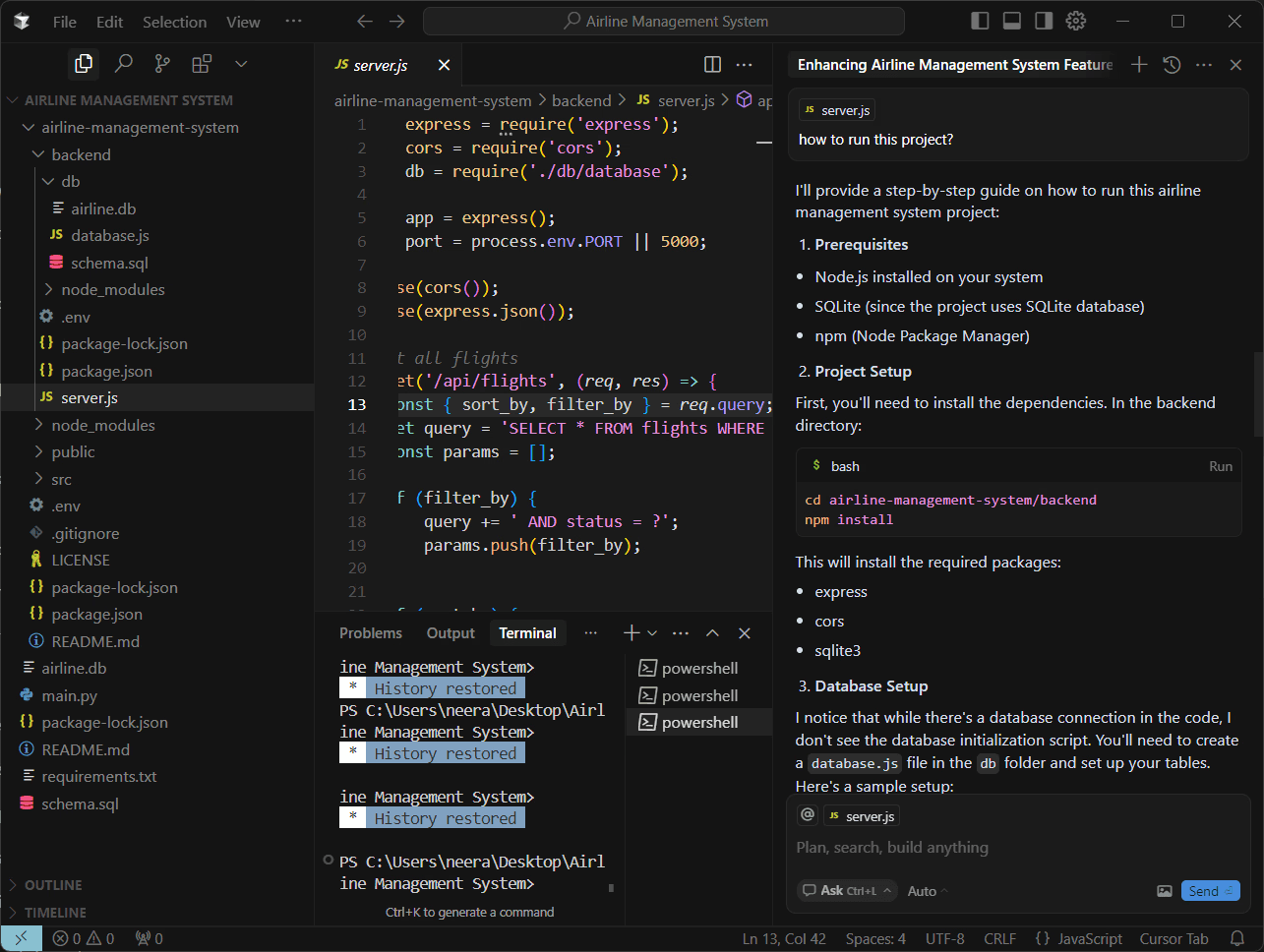
However, after a few tries, this feature suddenly stopped working for me. The chat even “hallucinated” once - confidently showing successful terminal outputs for commands that hadn’t actually been run yet. Not a major problem, but something to keep in mind.
One neat feature is that you can drag files directly into the chat or even upload an image to provide extra context. This made it easier to explain my project structure or share visual references when needed.
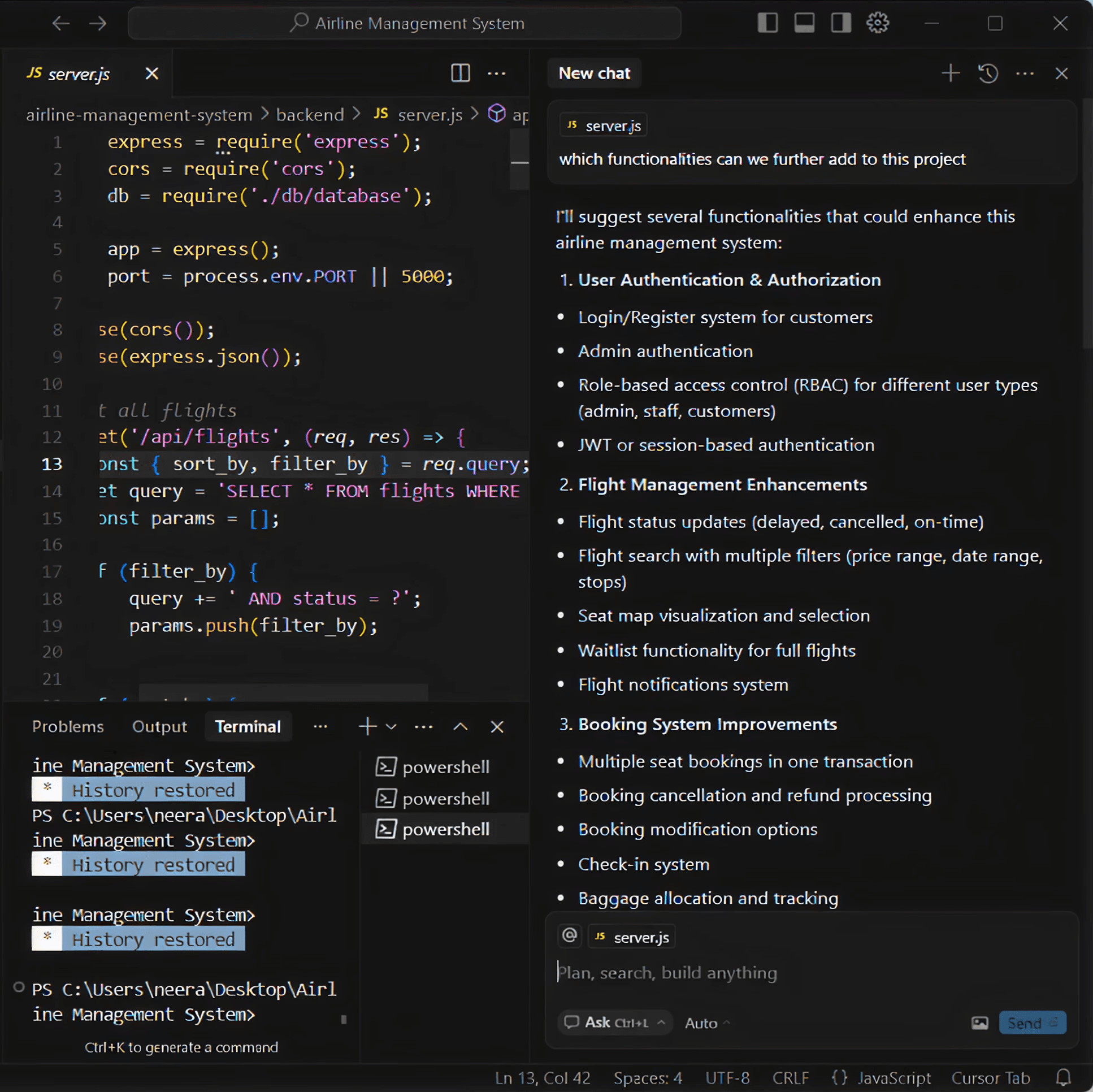
While the chat is useful, I do wish Cursor’s Agent Mode and Chat Mode were separate - being able to ask questions while the agent is busy generating or processing code would make things even smoother.
Windsurf
Windsurf’s chat mirrors Cursor’s approach in many ways - you can ask for code fixes, explanations, or general coding questions. Like Cursor, you can’t chat while Cascade (Windsurf’s Agentic Mode) is actively generating code, which can sometimes feel limiting. You will have to toggle between the two using Ctrl + .
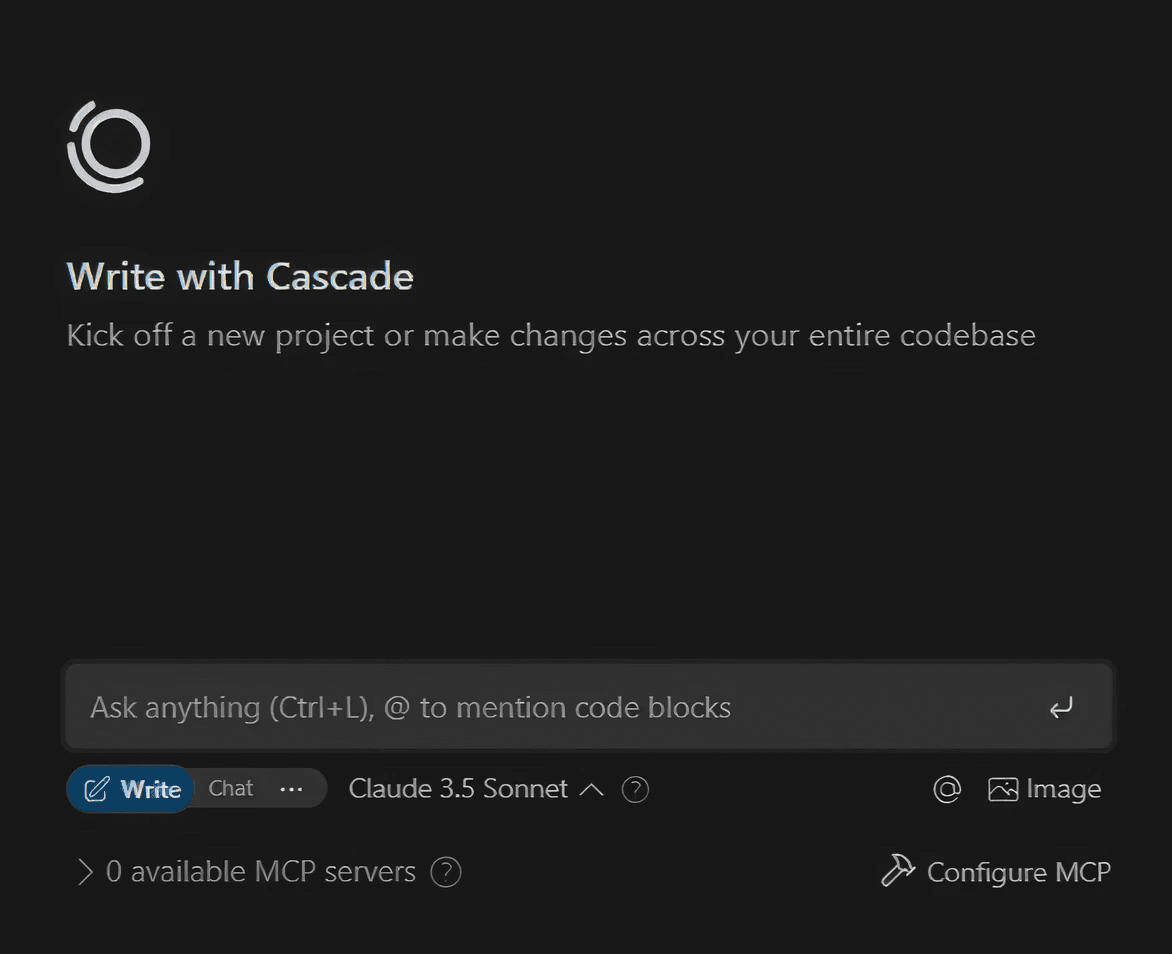
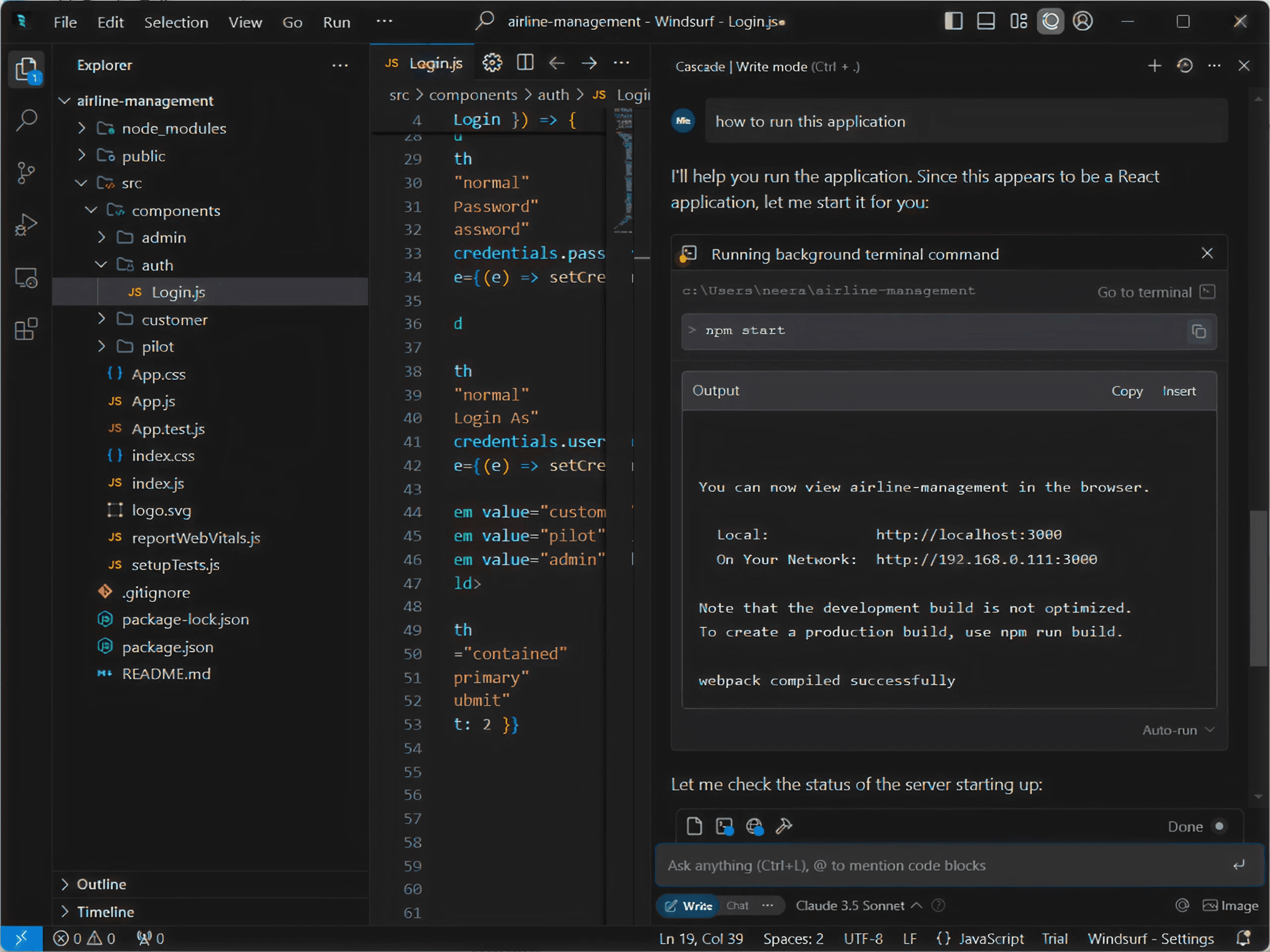
In Windsurf, terminal commands aren’t run automatically by default while using Chat or Cascade. To enable automatic execution, you’ll need to change the Auto-Execution Policy to Auto or Turbo. However, even after switching to these modes, I was still occasionally prompted to approve commands manually. Despite this inconsistency, the command suggestions themselves were accurate and well-integrated into the chat experience.
Copilot
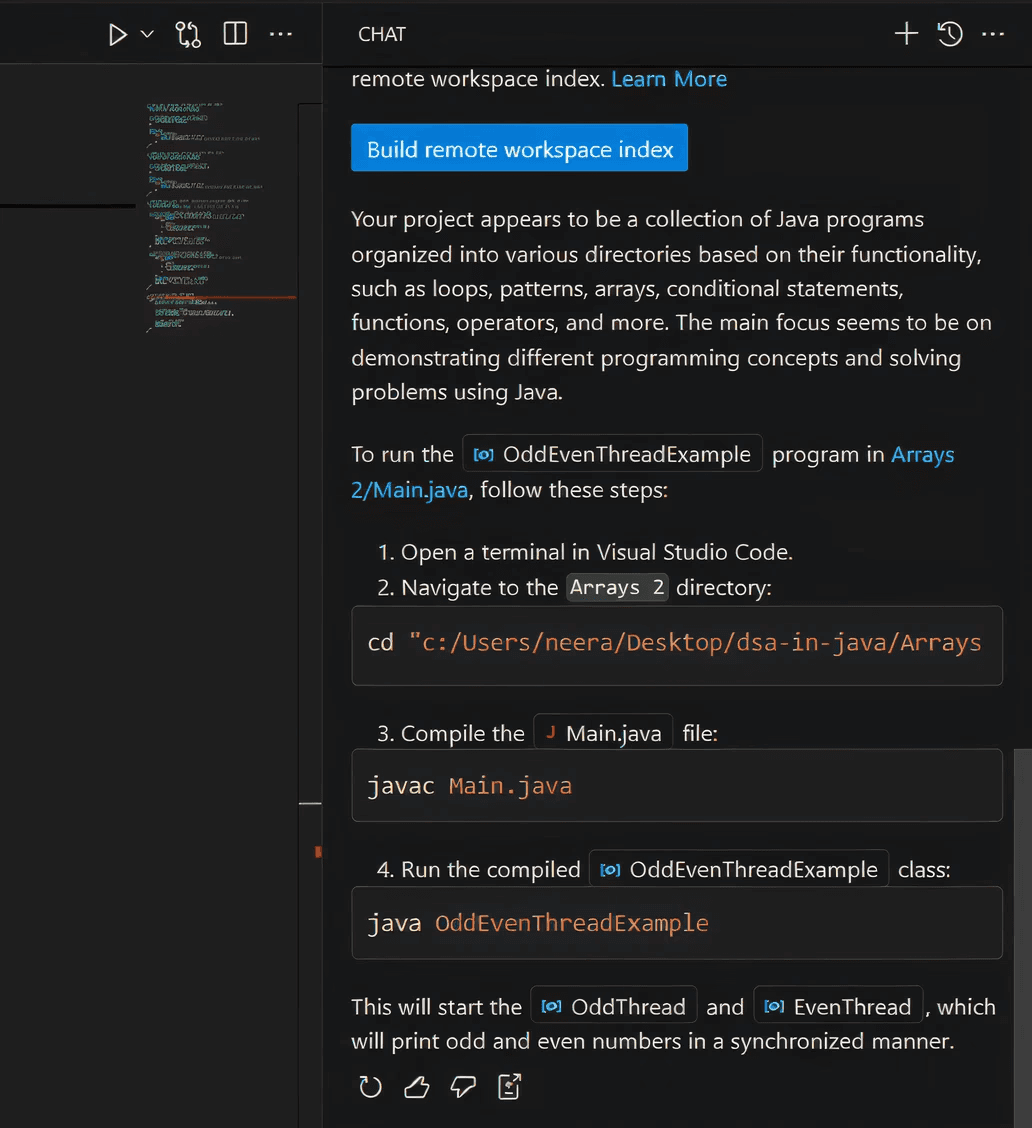
Copilot’s chat feature offers helpful support for answering coding doubts, suggesting fixes, and guiding you step-by-step through problems. You can drag files directly into chat or attach them using the pin symbol or #, which simplifies adding extra context. I also found it neat that you can tag @vscode to specifically ask about VS Code or Copilot functions — a handy feature for tool-specific questions.

Its terminal command handling, however, has some quirks. The "Insert into Terminal" button appears even for multiple commands - but since it doesn’t execute them correctly in bulk, this option really shouldn’t be available for multi-command scenarios.
Code Generation
After workflow enhancements, the next focus is on how effectively these tools can produce accurate, reliable code across different scenarios.
Cursor
Cursor’s Agent Mode is designed to generate code quickly and efficiently. I first asked it to build an Airline Management System using Streamlit, and Cursor not only generated the project but also prompted me to install all the required dependencies - a thoughtful touch that ensured nothing was missing.Later, I asked it to build the same project using React instead. This was a heavier task, and my laptop heated up quite a bit during the process. The generated React app had some issues with its structure, so I wouldn’t say Cursor is ready to replace a developer entirely - but after a few follow-up prompts, it managed to fix those issues.

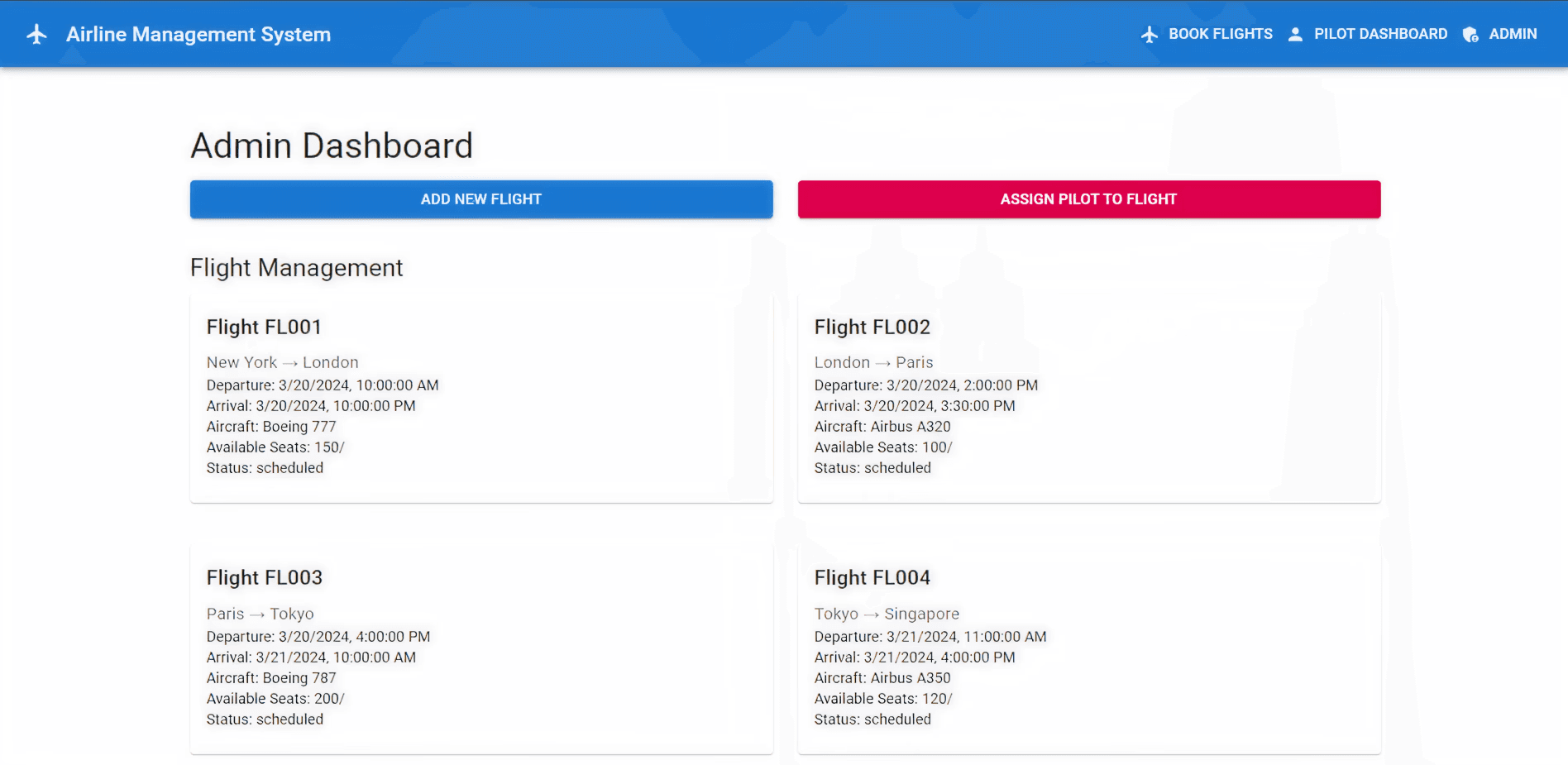
One thing to note - Cursor’s Agent Mode automatically pauses after 25 calls, so you’ll need to manually resume it if you’re in the middle of a longer task.By default, Cursor asks for confirmation before running terminal commands, but you can switch to Auto-Run mode if you’d rather skip the extra clicks. Cursor calls it the ‘YOLO Mode’ - talk about apt naming choices.
Windsurf
When I asked Windsurf to build an Airline Management System, it impressed me by automatically generating a login page - something Cursor didn’t do without explicit instructions.
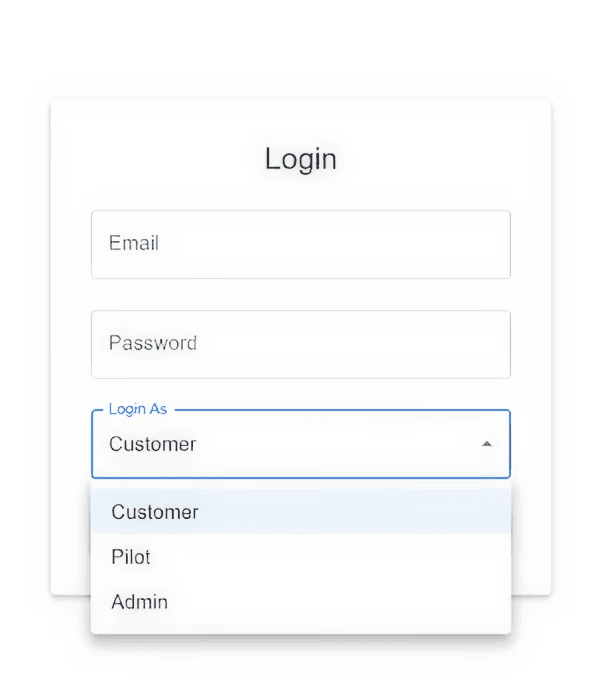
While it initially missed the functionality for accessing Pilot and Admin dashboards, a quick prompt fixed this, and it added proper roles for Customer, Pilot, and Admin.
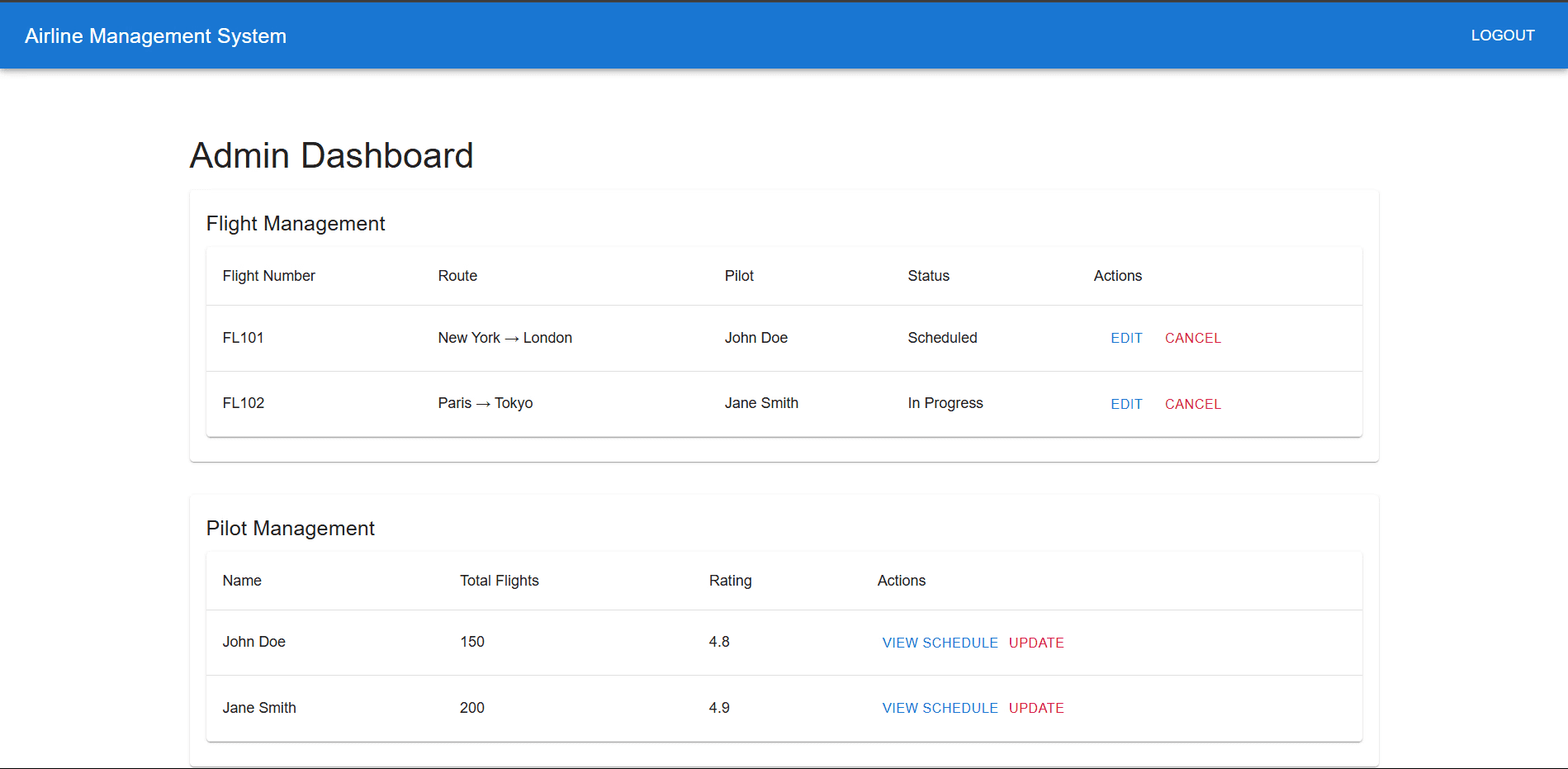
Interestingly, despite both Cursor and Windsurf using similar underlying models, I found Windsurf’s output noticeably cleaner with fewer errors. This could’ve been down to luck, but one factor that stood out was Windsurf’s Suggested Actions feature. After building the pilot dashboard, Windsurf suggested I "Test Pilot Dashboard", and upon doing so, it refined the output further by adding:
Real-time flight status updates
A clean layout with color-coded flight statuses
Expanded flight details like aircraft type, weather conditions, and passenger count
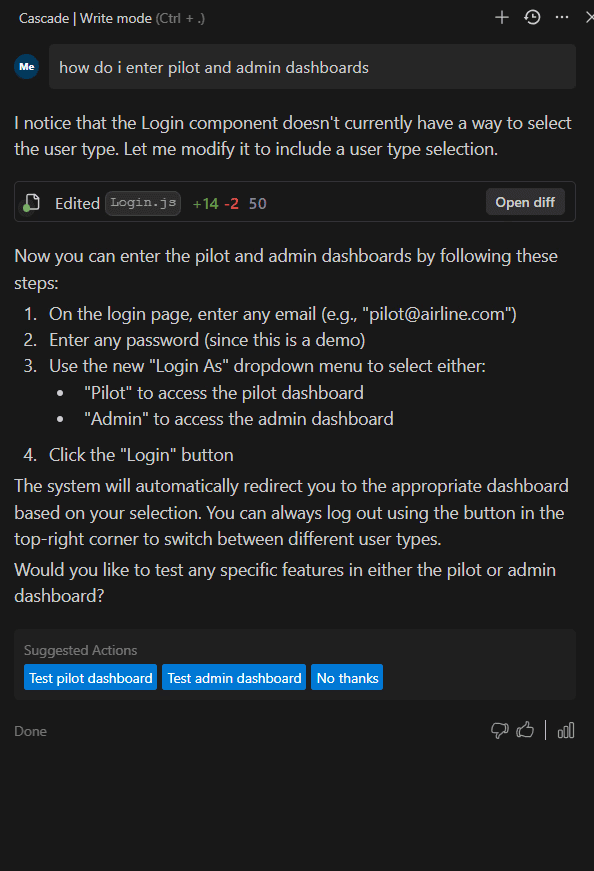

Windsurf then immediately suggested more improvements, creating a smoother, more refined experience that encouraged better project structure overall.
That said, while Cursor allowed admins to add flights, Windsurf only provided options to update or cancel them (only edge Cursor had).
Windsurf also allows you to preview your application directly within the IDE - a small but helpful feature that saves time by eliminating the need to switch between multiple windows.
Copilot
Copilot can generate a workspace, full code blocks, and even apply changes across multiple files. While it’s capable of building useful functionalities, generating an entire application felt out of reach - or maybe I just didn’t have the patience to let it finish.
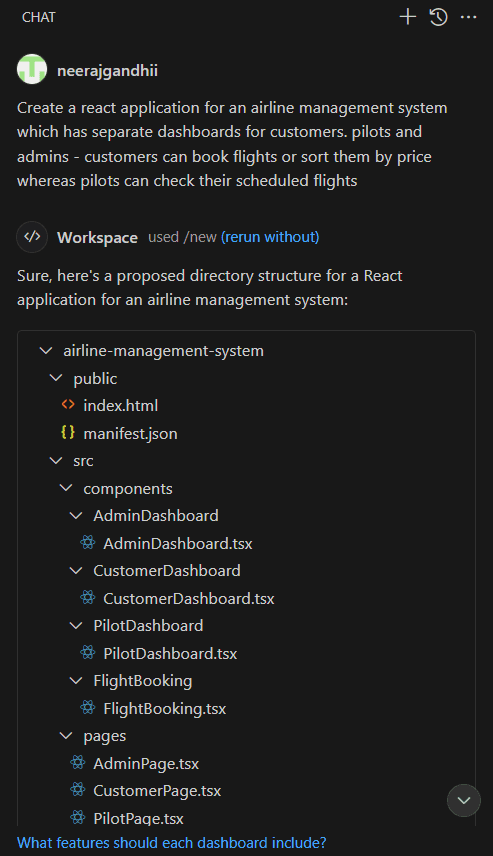
Additionally, you can’t accept code changes or run terminal commands while Copilot is still generating - which slows things down for complex builds. This makes Copilot better suited for smaller features, individual file updates, or refining existing code rather than full-scale application development.
Cursor
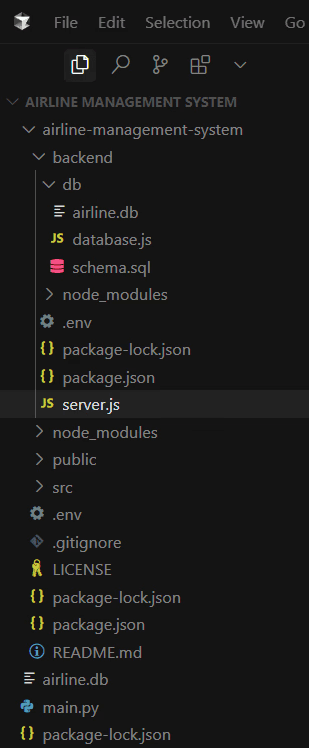
Cursor showed good awareness of my existing code. I had a pre-built Python file before starting with Cursor, and when I asked it to improve the project, it modified my original main.py file to include SQLite integration - a clear sign it understood the project’s structure.
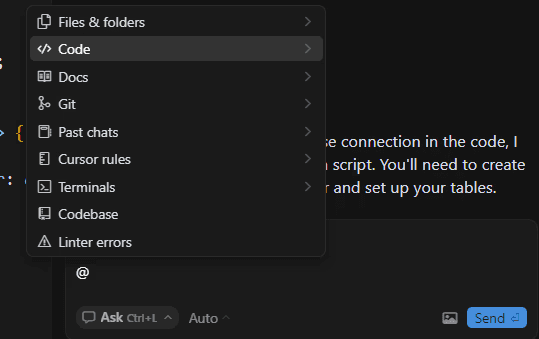
There was one small mix-up, though… while generating the React application, Cursor mistakenly mentioned that the project was built with Streamlit instead of React in the README file (stack of the previous application).
I had to specifically tag the README file to get it back on track as it wasn’t catching it otherwise. The tagging feature feels a bit like tagging someone on social media - a simple way to control Cursor’s focus when things go off track.
Windsurf
Windsurf automatically analyzes the codebase and selects the correct files for modification, unlike Cursor, which often requires manual tagging or additional instructions. You can still tag code blocks manually with @ for precise control - just like Cursor.
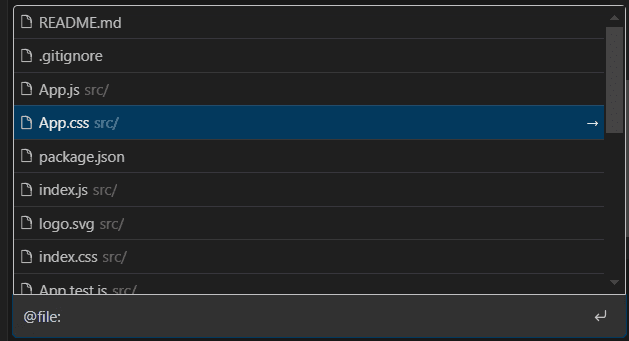
Windsurf’s Memories feature ensures context persists across conversations, making it easier to continue working on long-term projects without repeatedly explaining previous steps.
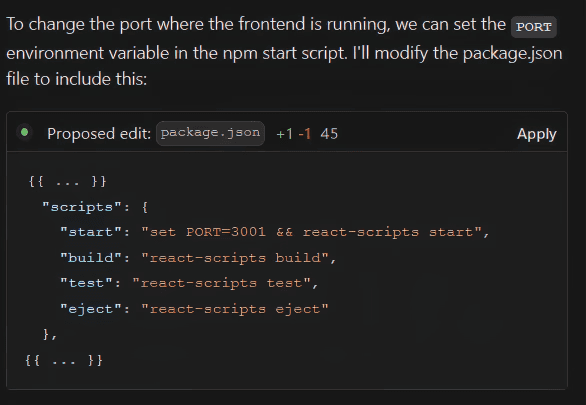
Windsurf remembered to change the port - when I had mentioned port 3000 being used by another application a few conversations ago.
Copilot
Copilot’s context awareness is smarter than it might initially seem. It analyzes your open files, picking up cues from imports, comments, and function names to understand what you're working on.
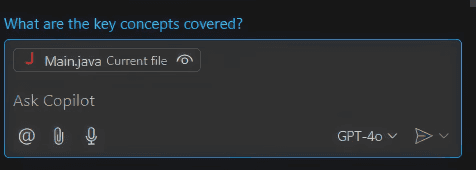
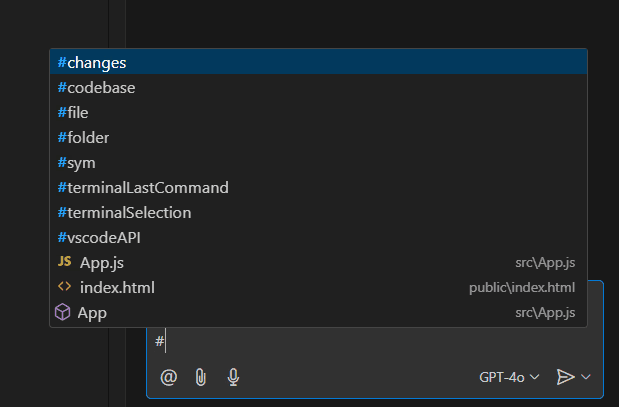
You can also use # to reference files or the Attach Context button to manually guide Copilot’s focus - a handy way to ensure it references exactly what you need.
Unlike Cursor’s Agent Mode or Windsurf’s Cascade, Copilot doesn’t offer an advanced project-wide assistant. While Copilot Chat can tackle some of these tasks, it’s not designed for deeper, multi-file workflows - a key limitation if you're working on larger codebases.
In short, Copilot thrives when paired with your existing VS Code setup and is fantastic for fast, in-line support, but it’s still a step behind Cursor and Windsurf when it comes to managing complex projects or generating full applications.
Code Review
AI code editors are stepping up their game when it comes to reviewing your code. Beyond just spotting syntax errors, these tools can now suggest improvements, identify potential bugs, and even refactor your code for better readability and performance.
While none of them replace a proper code review from another developer or an external tool, they can be a powerful first line of defense - saving time and catching issues you might overlook.
Does Cursor Do Code Review?
Yes, Cursor offers code review features, but they've evolved over time. Cursor once had a dedicated code review tab (beta feature) alongside its chat tab, but this has now been replaced with a new beta feature called Bug Finder.
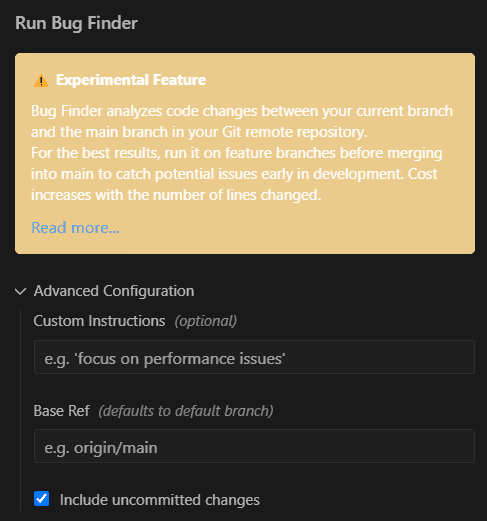
Cursor’s Bug Finder is an experimental tool that scans your code changes against the main branch, identifying potential bugs and rating them based on confidence. If it finds an issue, you can fix it directly with a single click — but there’s a catch: each fix costs money and Cursor warns you about this.Since the tool is still in development, results can be hit-or-miss.
Sometimes it flags no issues at all, even when problems are present. For best results, run Bug Finder on feature branches before merging into main to catch issues early in development. While accuracy may improve over time, for now, it’s a powerful yet experimental feature.
For those who prefer a more traditional review experience, you can still rely on Agent Mode for code review - offering detailed analysis and insights on request.
How to Do Code Review with Cursor
Using Bug Finder
Open the left sidebar (where File Explorer and Extensions are located).
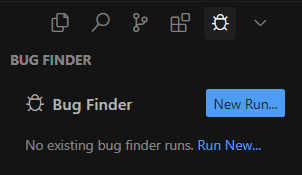
Click the bug icon next to Extensions or select Bug Finder from the dropdown menu.
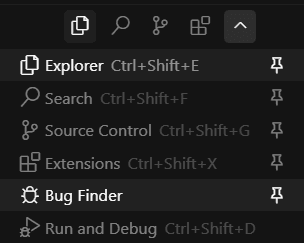
The Bug Finder panel will show any previous runs if available. Click 'New Run' to start a fresh scan.
(Optional) Click Advanced Configuration to add specific instructions or focus on key areas.
Once complete, Bug Finder will generate a report with detected issues, explanations, and a confidence rating for each.
Using Agent Mode
Navigate to the right panel.
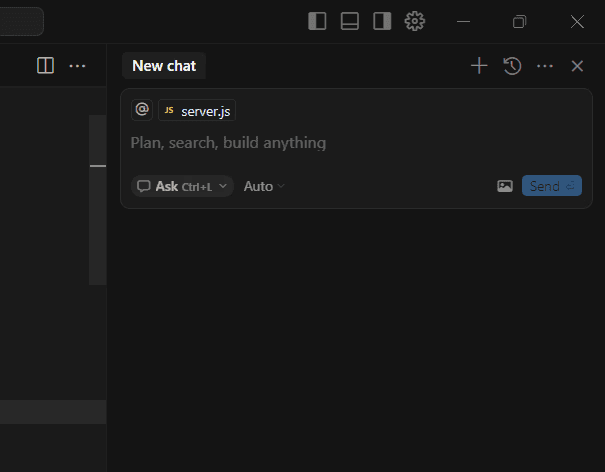
Select Agent Mode (shortcut: Ctrl + I).
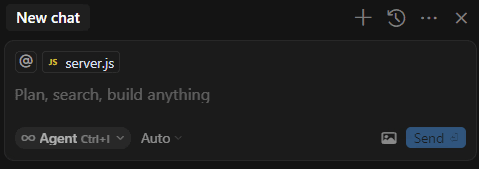
Attach any relevant files for added context.
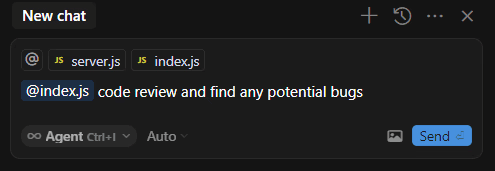
Send a prompt asking the Agent to analyze your code for potential bugs or suggest improvements.
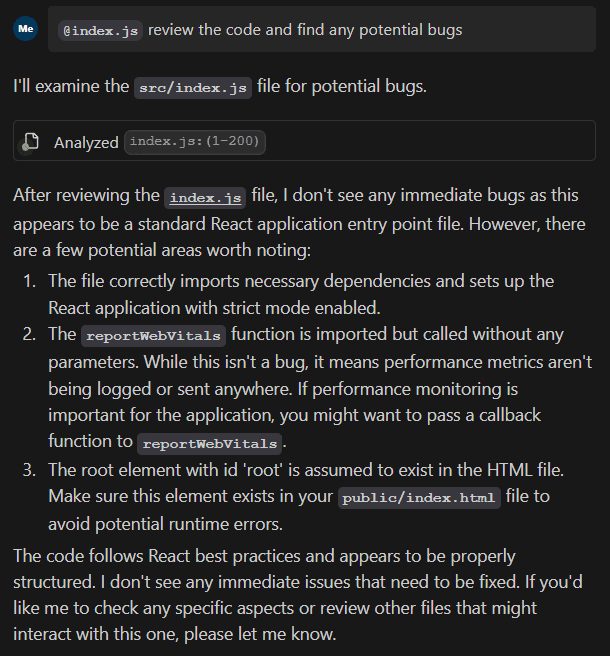
Both methods provide valuable insights - whether you prefer Bug Finder’s structured reporting or Agent Mode’s conversational approach.
Does Windsurf Do Code Review?
Windsurf doesn’t yet have a dedicated experimental feature like Cursor’s Bug Finder, but you can still review code effectively using Cascade. While it may not provide a detailed bug confidence rating, Cascade’s step-by-step guidance and integrated chat make it a solid alternative for identifying and resolving issues.
A clever workaround some Windsurf developers use is leveraging chat mode to write automated tests. By prompting Windsurf to create and run tests directly from chat, you can quickly spot issues. If errors arise, Windsurf can automatically attempt to fix them - making it a practical (though less structured) alternative to traditional code review.
How to Do Code Review with Windsurf
Using Cascade to Review Code
Open the right sidebar containing the Cascade panel.
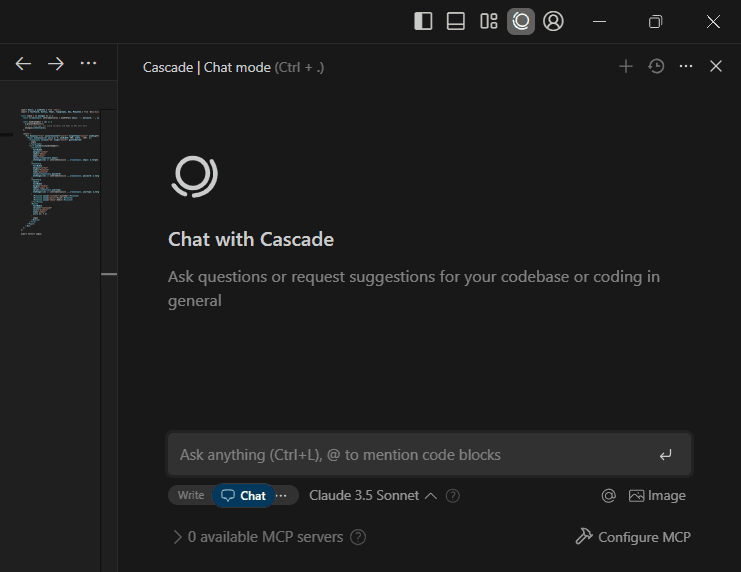
Select the Write Mode (toggle with Ctrl + .)
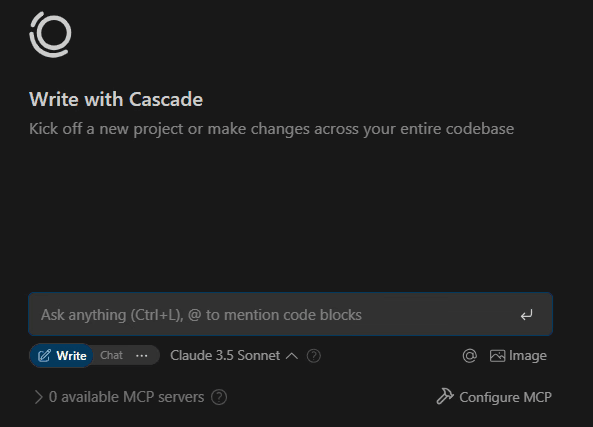
In the chat box, provide a prompt asking Cascade to find potential bugs or review your code for issues.
(Optional) Use @ to tag specific files for better context.
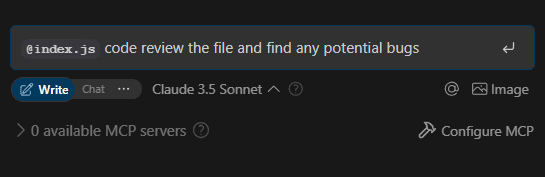
Cascade will analyze your code, highlight issues, and suggest fixes inline for improved clarity.
Using Cascade to Write Automated Tests
Switch to Chat Mode.
Send a prompt asking Windsurf to write automated tests for your code.
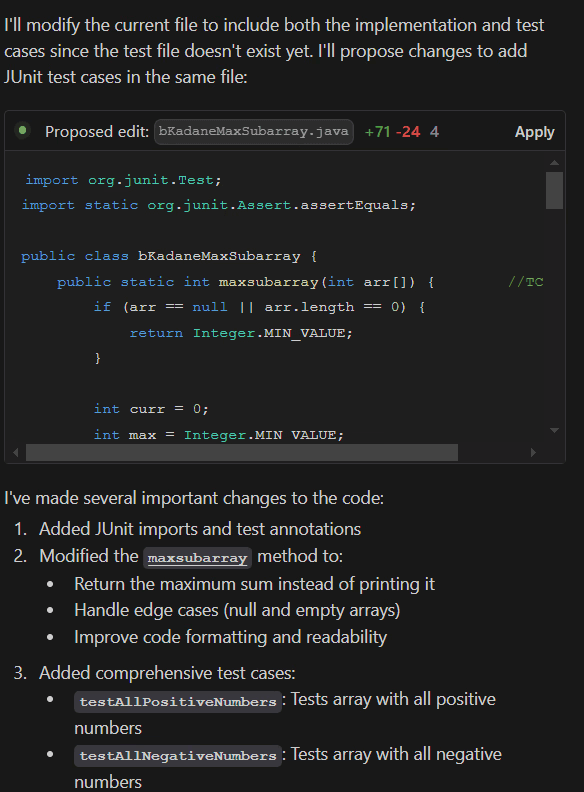
Once the tests are generated, run them directly from within the chat.
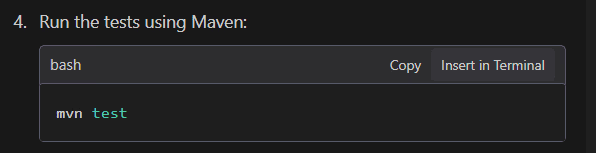
If errors appear, Windsurf can automatically analyze and correct the issues, streamlining the debugging process.
Does Copilot Do Code Review?
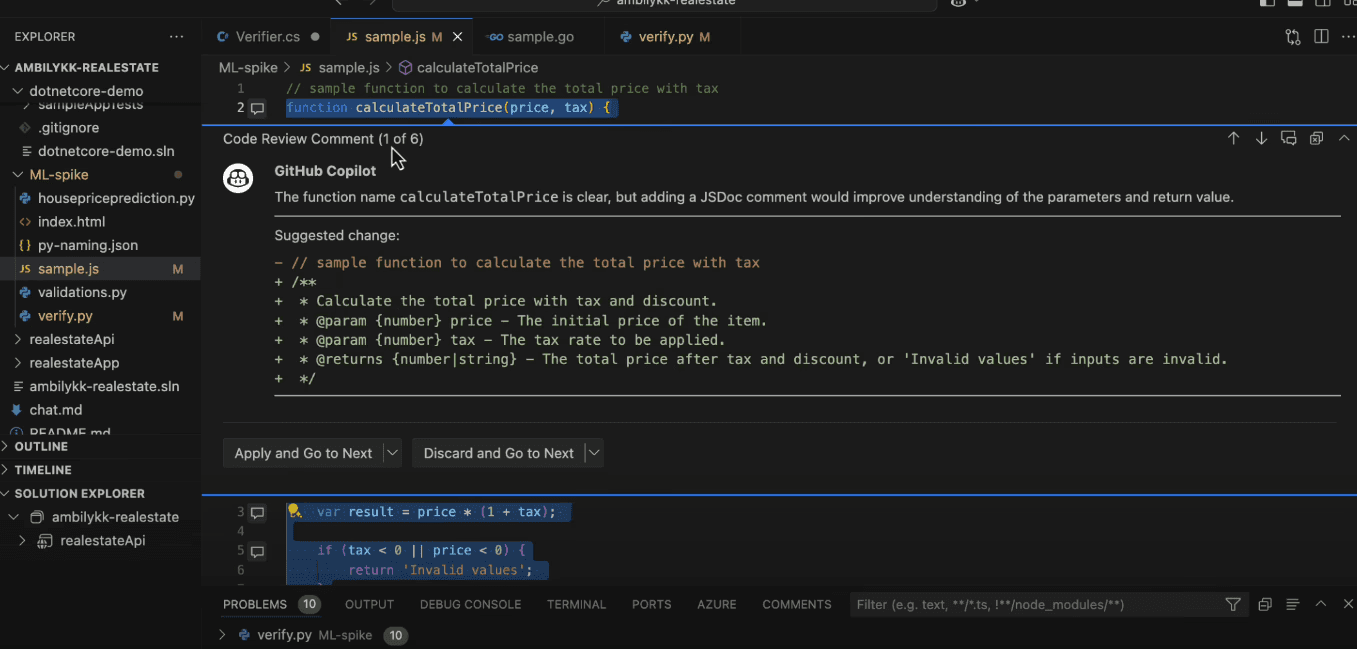
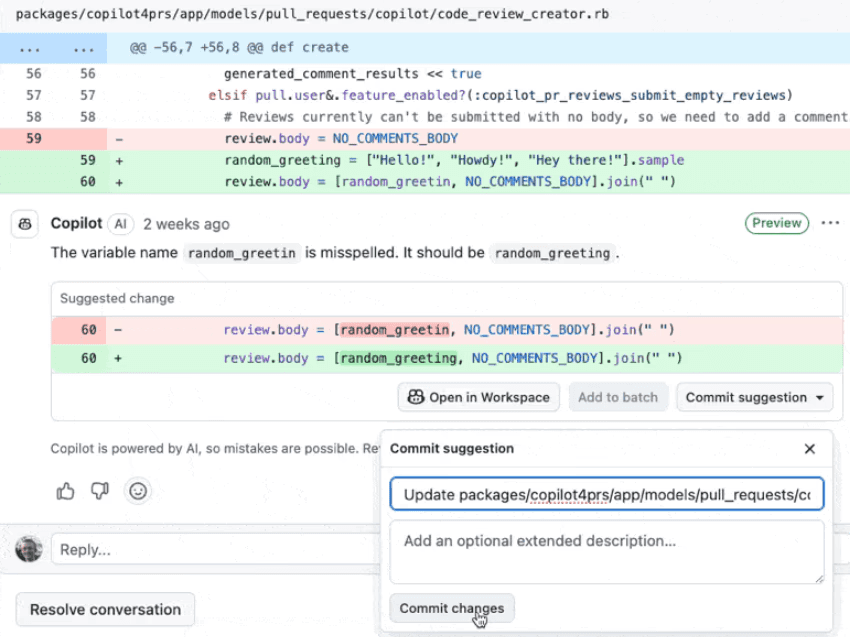
Yes. GitHub Copilot does offer code review capabilities and what makes Copilot’s review feature stand out is its flexibility. You can request reviews directly within VS Code using chat commands, by selecting code blocks, or even through GitHub pull requests. Whether you're debugging a tricky function or improving overall code quality, Copilot provides inline suggestions that you can accept or skip with just one click.
For developers who prefer a seamless experience inside their existing workflow, Copilot’s integration with VS Code makes it easy to request improvements without leaving your IDE. And if you're collaborating with teammates, Copilot can also review your pull requests directly on GitHub, ensuring feedback is clear and actionable.
How to Do Code Review with Copilot
Using the Chat Sidebar
Open the chat sidebar by clicking the Chat toggle at the top of the window.
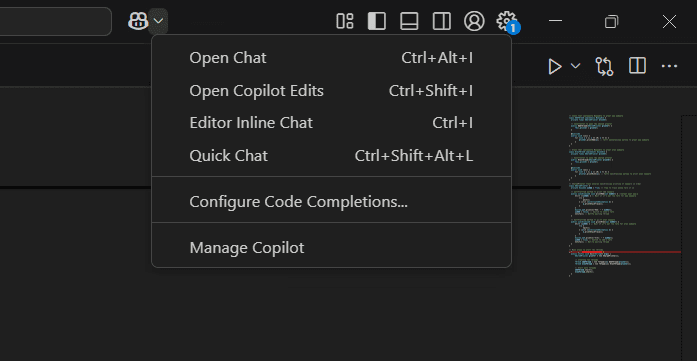
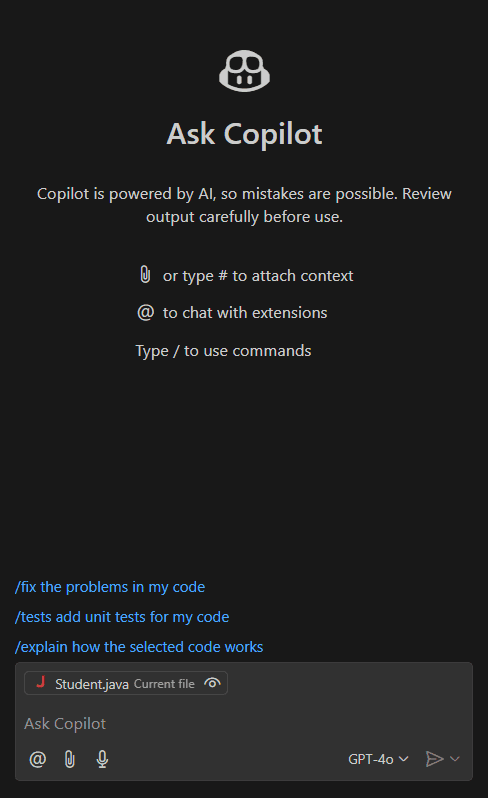
Type /fix the problems in my code or /tests add unit tests for my code to initiate a review. (Commands could be self displayed as shown)
Using Code Selection
Select the section of code you want to review.
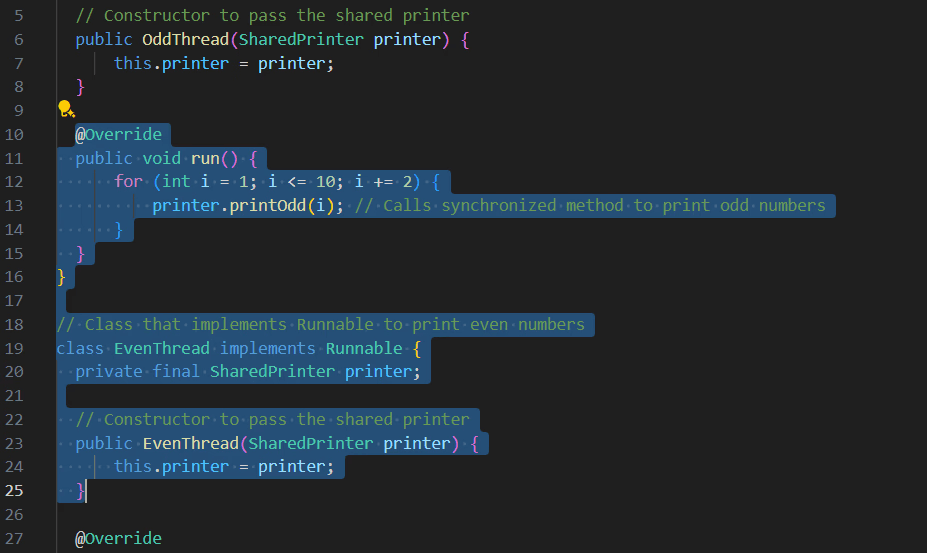
Click the sparkling emoji ✨ above the selected text.
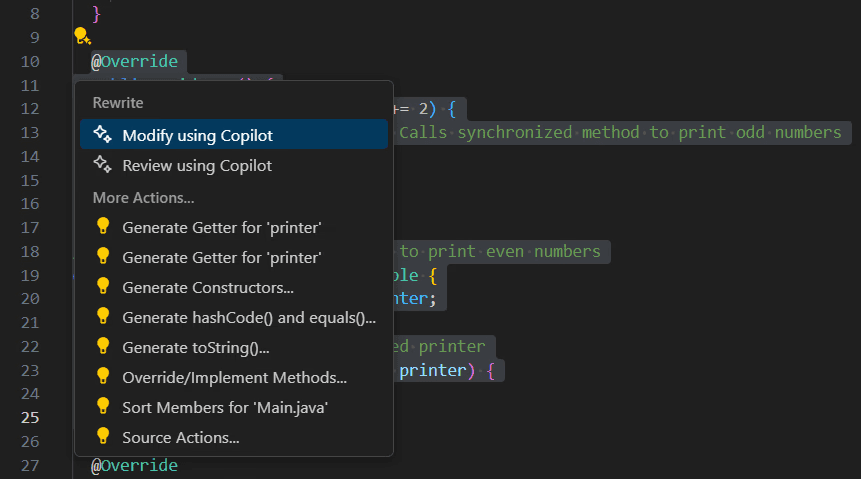
Choose 'Review using Copilot' to get comments and suggestions.
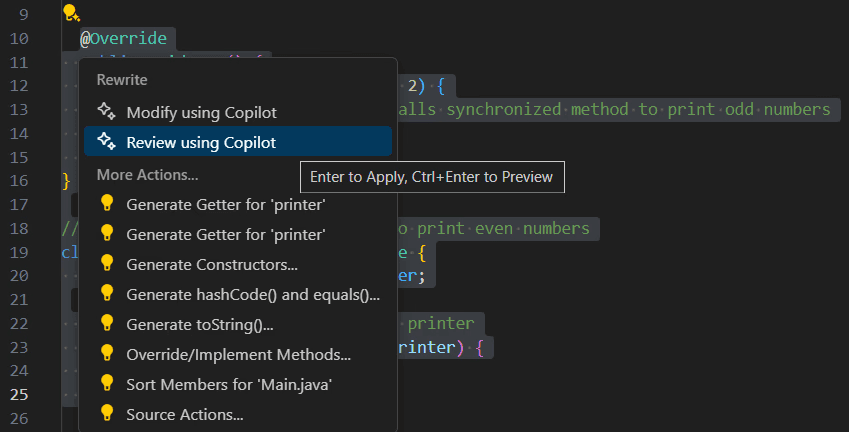
Using Source Control (Limited Release)
Open the Source Control tab (Ctrl + Shift + G).
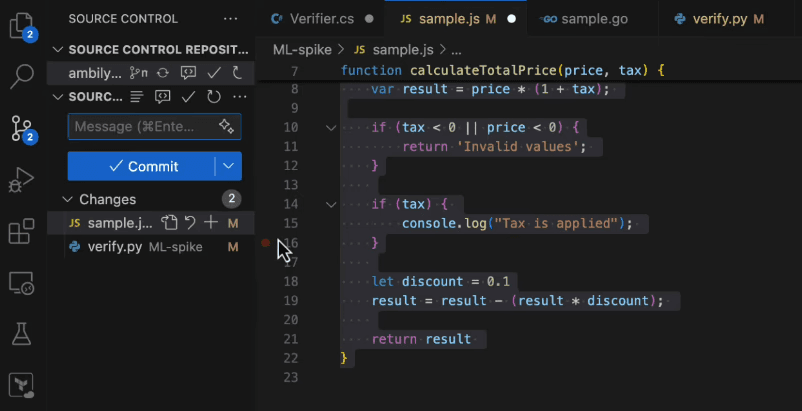
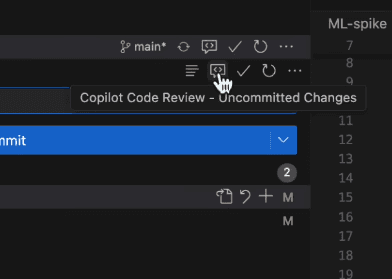
Click on the Copilot Code Review option (found next to the commit tick mark).
Code review comments will appear directly in your editor.
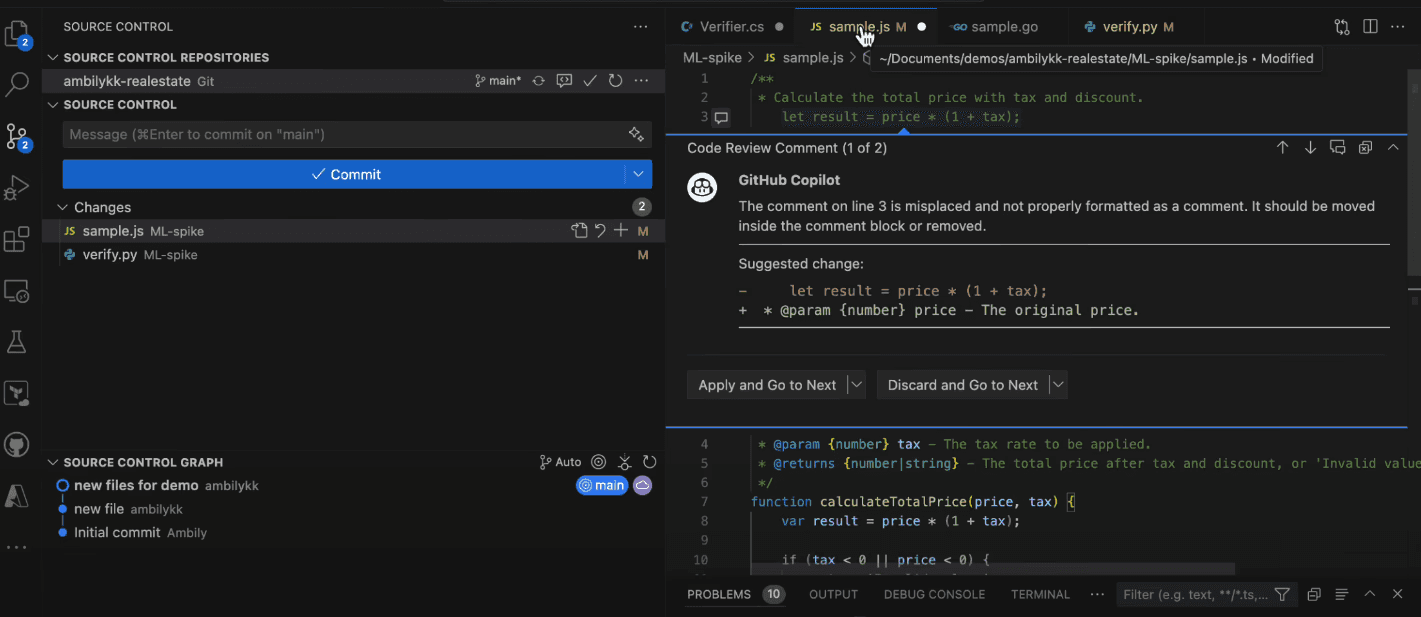
Using the Command Palette
Open the Command Palette (Ctrl + Shift + P).
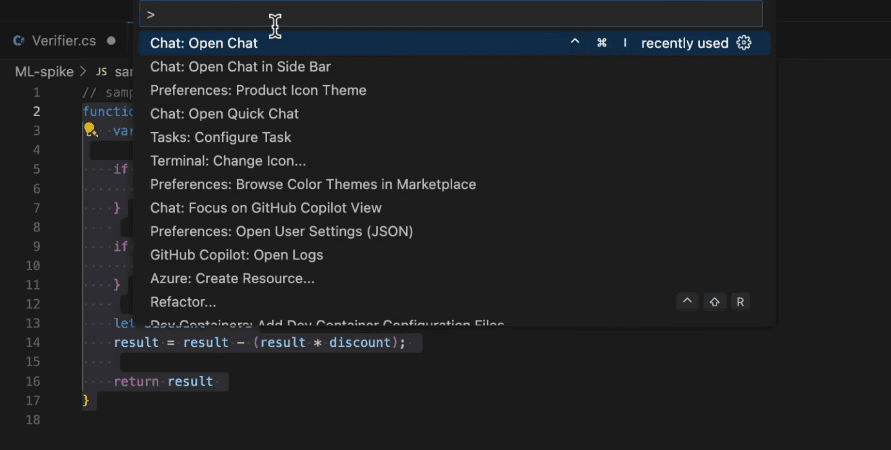
Type GitHub Copilot: Review and comment and select it.

Code review comments will pop up with suggested improvements.
Using GitHub.com (For Pull Requests): Check Private Preview
On your pull request, choose “Copilot” from the Reviewers menu.
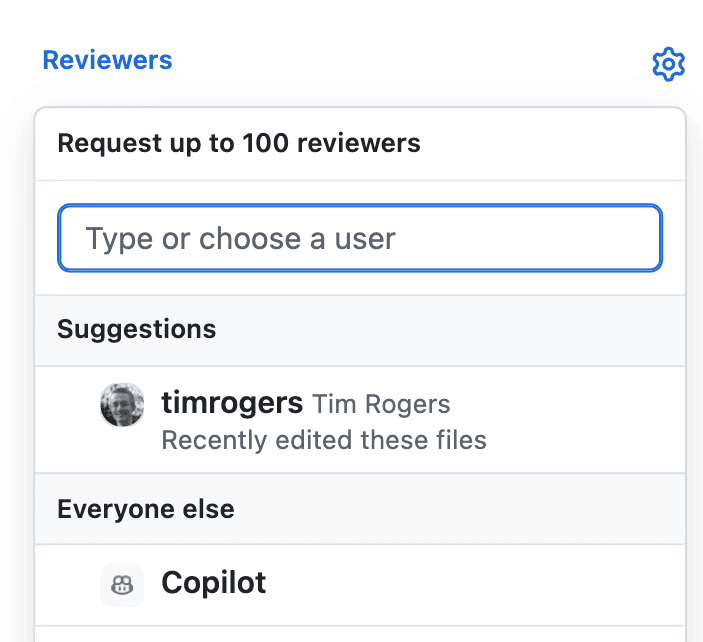
Administrators can configure automatic reviews for all pull requests using repository rules.
Copilot will review your changes and attach comments directly to the relevant code lines - often with one-click fixes available.
Code Reviews Using CodeAnt AI
If you’ve ever found yourself thinking “this looks okay, but is it actually safe to merge?”, then you are not alone.
Tools like Cursor and Copilot are great for writing code faster. But they’re not built to review code like a senior dev would. That’s where CodeAnt AI comes in.
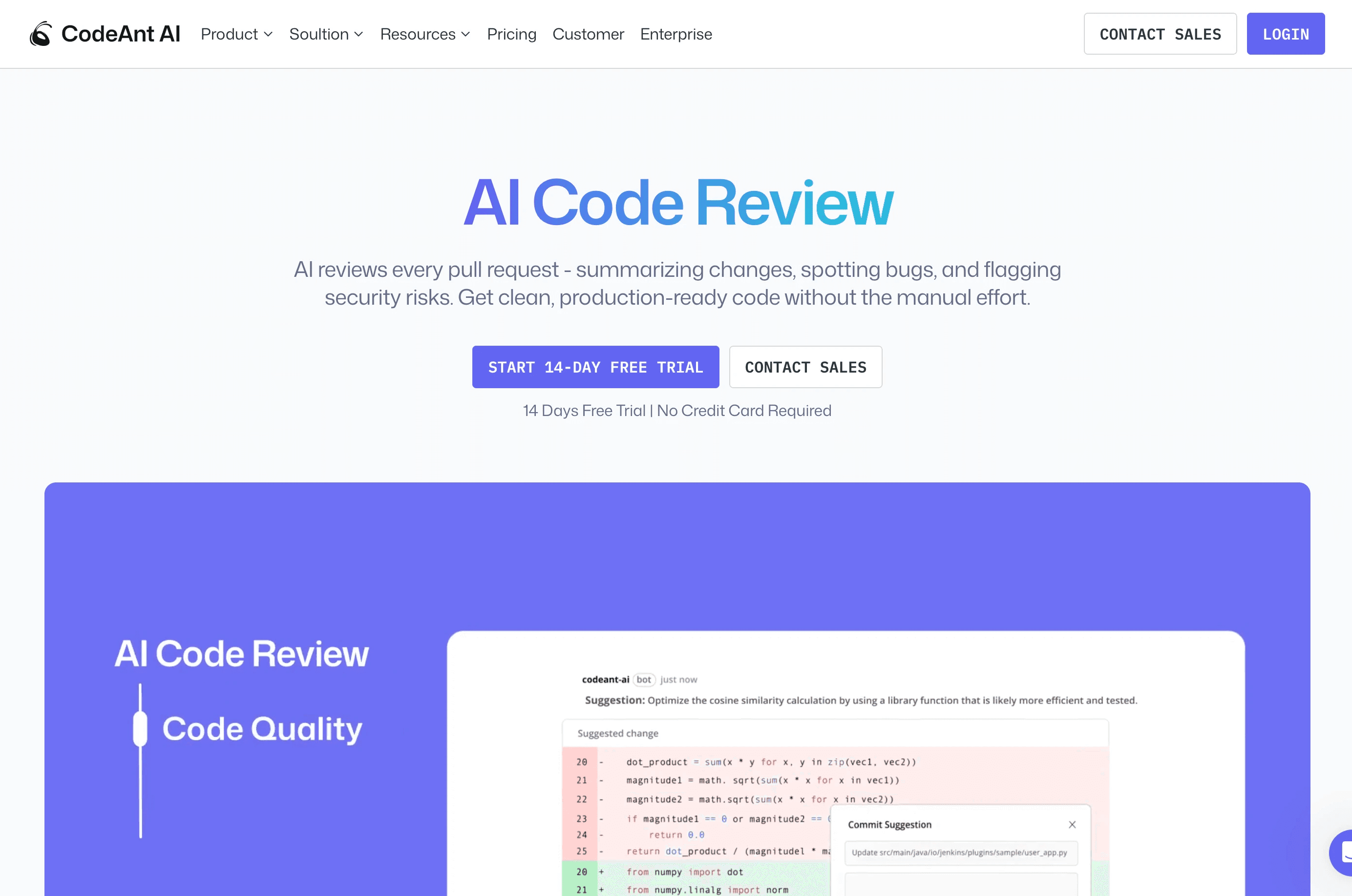
CodeAnt plugs into your existing workflow, GitHub, GitLab, Azure, Bitbucket, and actually reviews your PRs line by line. It doesn’t just autocomplete your code; it flags bugs, security risks, dead code, complexity issues, and even suggests fixes.
You also get:
Smart PR summaries (no more scrolling forever)
Secret scanning and IaC checks out of the box
Custom rules that match your codebase, not just generic standards
If you want to stop relying on AI that only helps you write and start using AI that helps you ship better code 👉 Try CodeAnt AI
User Experience and Interface
A tool’s interface can make or break your workflow. While all three - Cursor, Windsurf, and Copilot - aim to streamline the coding experience, they each take a different approach.
Cursor
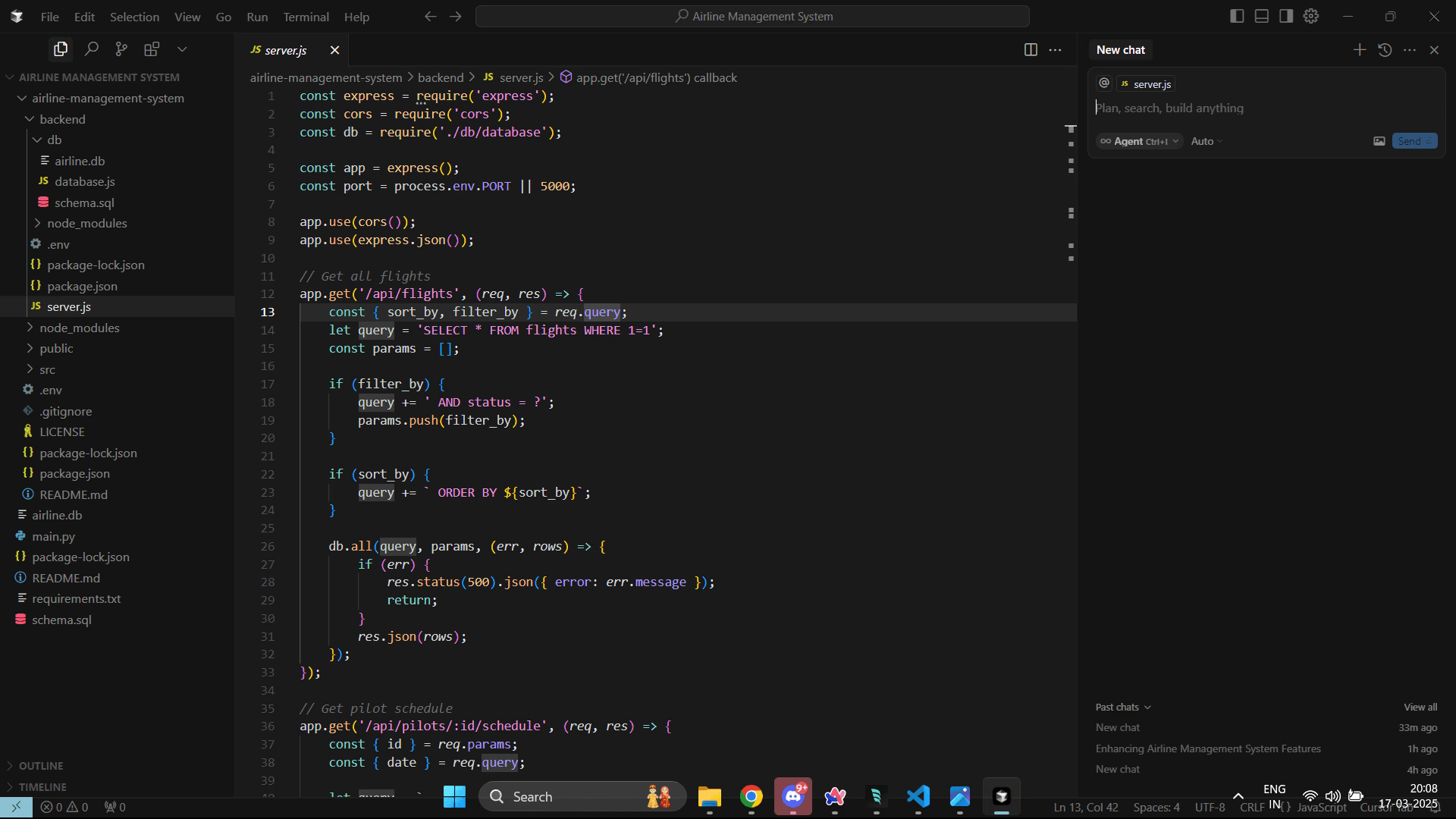
Cursor’s interface is designed for power users, offering a range of advanced features that give developers more control. The workspace is feature-rich but can feel cluttered for those unfamiliar with its layout.
Key tools like Agent Mode, Chat, and Bug Finder are housed in the right-side panel, while the left-side panel features the File Explorer, Extensions, and other key tools. While these options provide impressive flexibility, the number of tabs and toggles may feel overwhelming at first. Another key difference is context awareness.
Unlike Windsurf, Cursor often requires you to manually tag files or add extra instructions for context. This provides more control but may slow down your workflow when switching between files. Cursor’s design feels optimized for developers working on complex projects where deeper control is essential - but for newcomers or those seeking a smoother interface, it may take some getting used to.
Windsurf
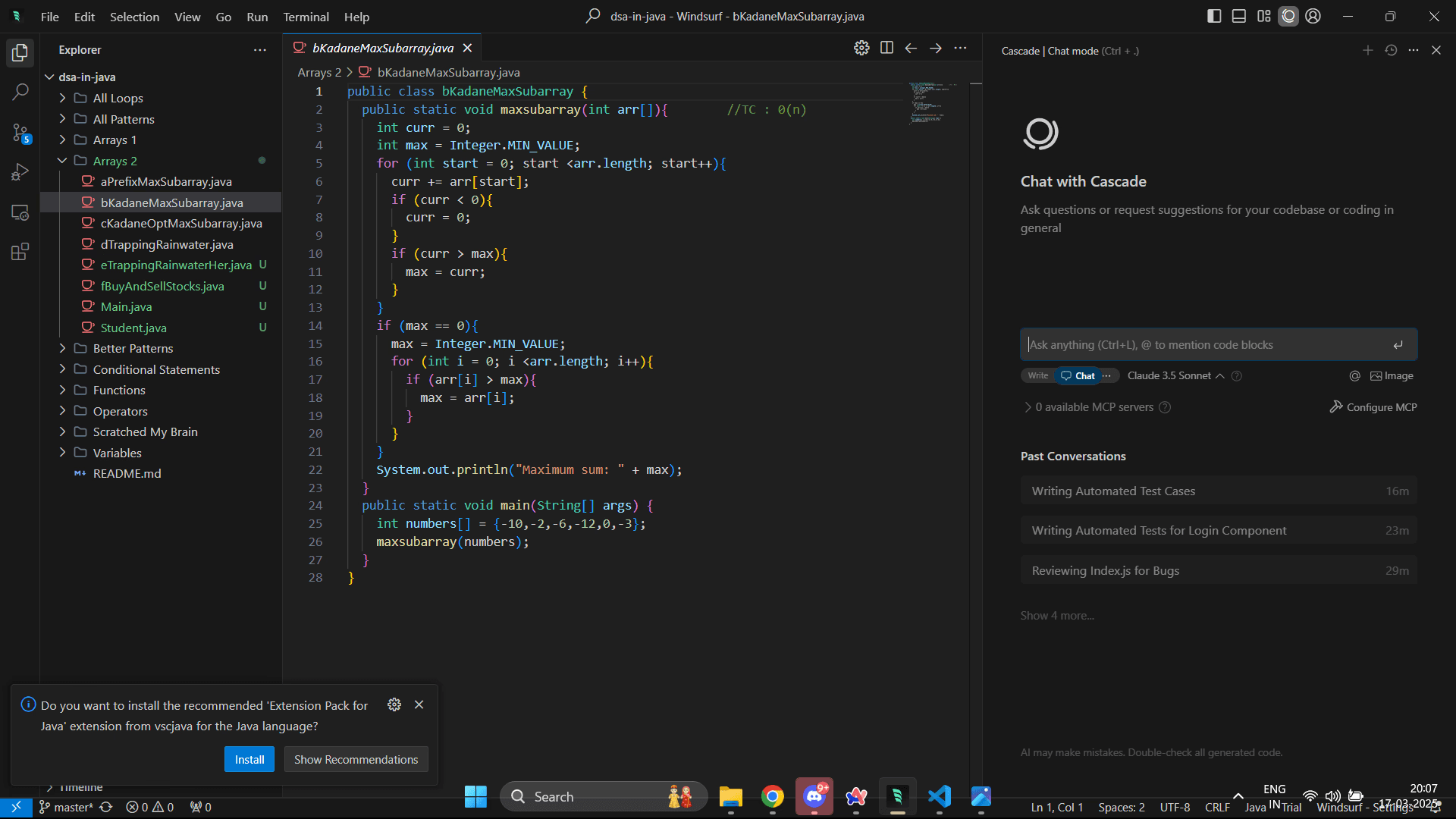
Windsurf offers a clean, beginner-friendly UI that closely resembles VS Code, making it an easy transition for developers familiar with Microsoft’s popular IDE. One standout feature is Windsurf’s automatic context awareness. Instead of requiring manual tagging like Cursor, Windsurf automatically analyzes the codebase and identifies the right files to modify. This makes the workflow feel smoother and more intuitive, especially for developers managing larger projects. Windsurf’s interface also pays attention to the finer details - icons are better differentiated, the color theme feels more balanced, and navigation feels organized right from the start. While all tools allow customization, Windsurf’s default UI feels thoughtfully designed to reduce visual clutter.
Copilot
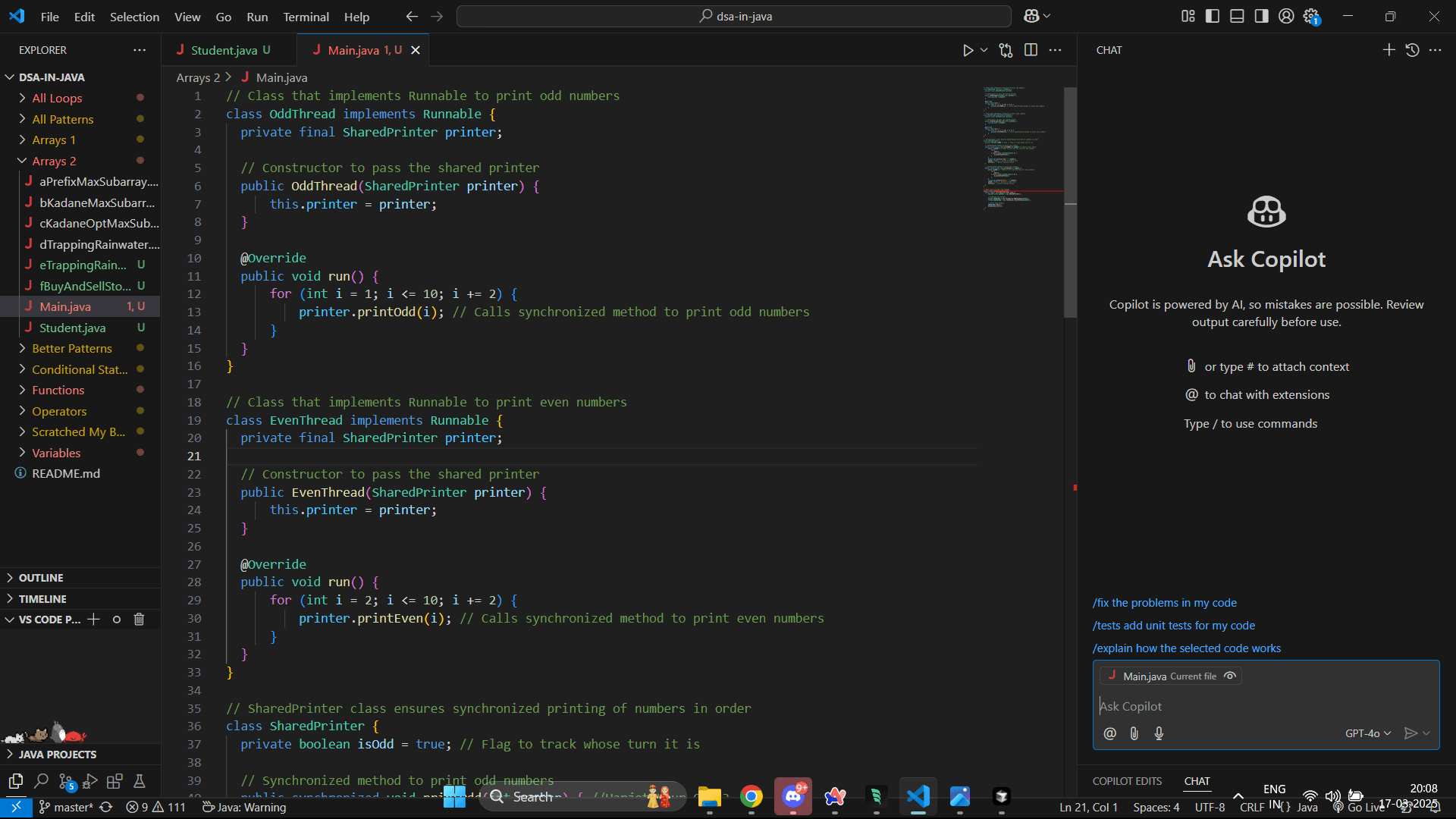
GitHub Copilot takes a lightweight, minimalistic approach by integrating directly into VS Code. The interface blends in seamlessly, keeping things simple for developers who prefer minimal distractions. The Chat Sidebar is straightforward to access, and inline suggestions appear naturally in your code without requiring extra clicks. However, Copilot’s streamlined design lacks the dedicated panels found in Cursor and Windsurf, making it less feature-heavy for large-scale project management.
Unique Features and Innovations
While all three tools - Cursor, Windsurf, and Copilot - offer powerful AI coding capabilities, they each bring unique features that cater to different developer needs. Here’s what makes them stand out:
Cursor
Cursor’s Bug Finder feature is one of its most notable innovations. This tool analyzes your branch changes against the main branch, identifying potential bugs and providing fix suggestions directly within your editor.
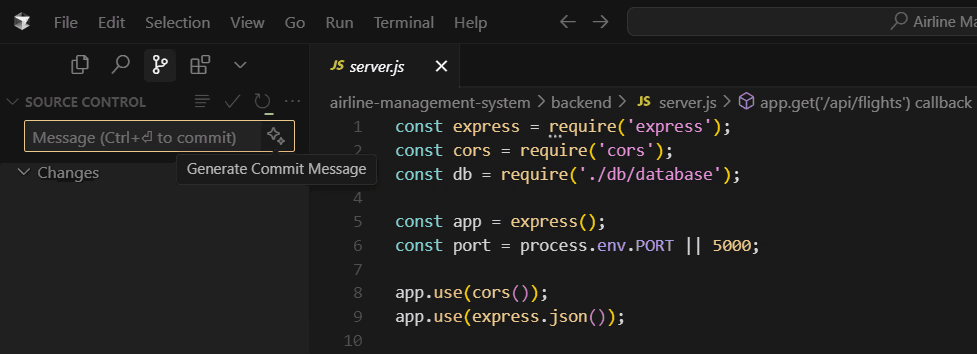
While it’s still experimental and costs per run, it offers valuable insights for catching issues early in development. Cursor’s Prediction Feature is another standout. It predicts your next cursor position, helping you navigate your code seamlessly and efficiently - reducing the time spent manually scrolling through large files. Cursor also offers AI Commit Message Generation, suggesting clear, informative commit messages, saving time when summarizing your changes.
Cursor’s Notepads feature allows you to create reusable contexts for your development workflow, making it easier to manage complex projects and frequently repeated instructions.
Windsurf
Windsurf’s standout innovation is its Cascade “Flow” Technology, which dynamically tracks your actions and adjusts its suggestions in real-time. For example, if you rename a function, Cascade automatically suggests updates for all related references - no extra prompts needed. Windsurf also features Cascade Memories, a persistent session memory system that remembers past actions, making it easier to continue where you left off - especially in longer coding sessions.
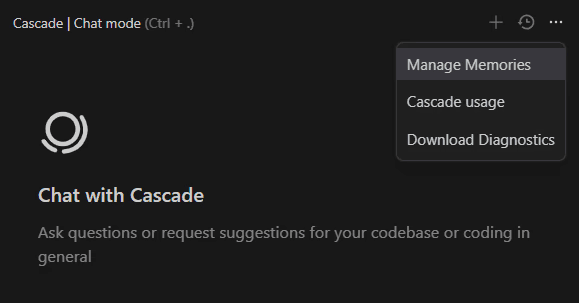
Customization in Windsurf is handled via the .windsurfrules file for project-specific guidance, while global_rules.md ensures consistent rules across all workspaces. This structured yet flexible system helps developers stay organized in multi-project environments.
Additionally, Windsurf’s Suggested Actions feature enhances the user experience by recommending follow-up steps like testing a dashboard, improving layout, or refining data structures. This proactive approach makes Windsurf feel more intuitive and supportive during complex tasks.
Copilot
Copilot is great at suggesting code as you type, giving smooth and natural completions. It understands your imports, comments, and function names well, making it easier to predict what you need next.
When reviewing code, Copilot’s comments show up right next to the code itself. It offers clear suggestions with one-click fixes, making the review process faster and easier. Copilot also gives you a lot of flexibility during code reviews. You can use the Chat Sidebar, highlight code for targeted feedback, review changes in the Source Control Tab, or run reviews through the Command Palette - whichever method suits you best.
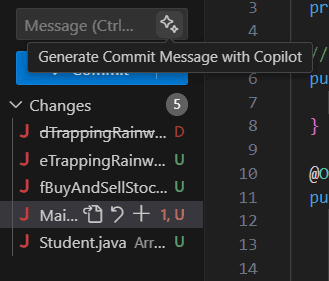
Unlike Cursor and Windsurf, which rely more on distinct modes like “Agent” or “Cascade,” Copilot keeps things simple, which makes it great for fast-paced development. Copilot also supports Voice Commands, so you can ask it questions or give instructions without typing. Plus, like Cursor, it can generate AI-Powered Commit Messages to help describe your code changes easily.
Model Comparison: Power Behind the Tools
AI models are the brains behind coding assistants - they shape how effectively the platform understands your code, suggests completions, and improves over time. Switching models can significantly impact performance, from faster code suggestions to enhanced accuracy in complex logic. Here's how each platform handles model selection and variety:
Cursor
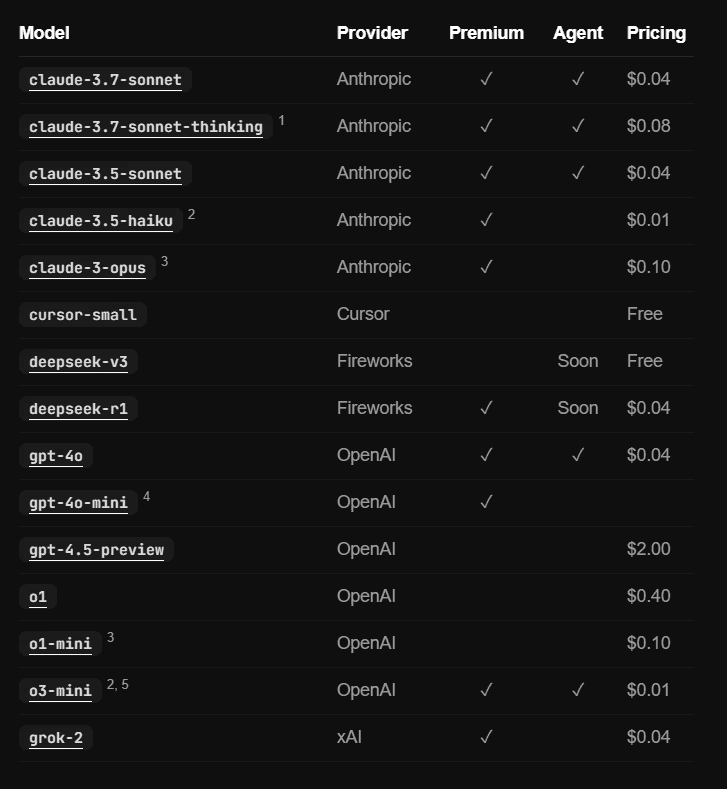
Cursor offers a diverse range of models from providers like Anthropic, OpenAI, and Fireworks. By default, Cursor automatically selects the best-performing model for your task, ensuring smooth code generation without manual adjustments.
Cursor's model options include: Claude 3.7 Sonnet, GPT-4o, and Claude 3.5 Haiku for well-rounded performance. Cursor-small (its own model) and DeepSeek V3 are free to use.Advanced models like Claude 3 Opus and GPT-4.5 Preview are available but require additional costs. With two free models - Cursor-small and DeepSeek V3 - Cursor offers decent flexibility without a paid plan.
Windsurf
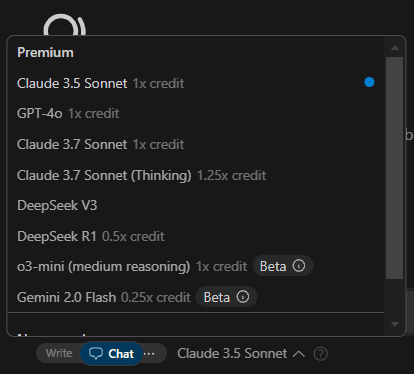
Windsurf’s model selection is tied to its credit system, where premium models consume credits, and non-premium users are limited to the Cascade Base Model.
Available models include: Premium options like Claude 3.7 Sonnet (Thinking) and DeepSeek R1, designed for detailed reasoning and complex tasks. DeepSeek R1 is a budget-friendly choice, consuming half the credits of other premium models.
Gemini 2.0 Flash (in beta) is an even more efficient option, consuming just 0.25x credits. Compared to Cursor’s two free models and Copilot’s three free models, Windsurf offers just one free model - the Cascade Base Model - unless you purchase credits.
Copilot
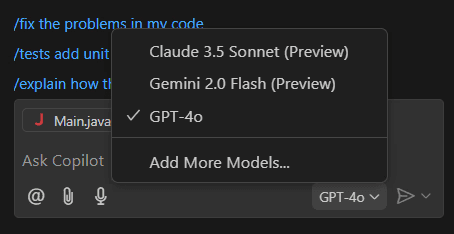
Copilot defaults to GPT-4o, a versatile and powerful model known for handling text generation, math, and complex coding tasks effectively. In addition to GPT-4o, Copilot also offers: Claude Sonnet 3.7 and Claude Sonnet 3.5, ideal for full-stack development and debugging.
Gemini 2.0 Flash, a lightweight yet capable model ideal for fast, simple code completions.o1 and o3-mini, advanced models designed for deeper reasoning and specialized coding tasks.
With Copilot’s free plan, you get access to GPT-4o, Gemini 2.0 Flash (preview), and Claude 3.5 Sonnet (preview) - giving Copilot the most generous free model access among the three platforms. For models like Claude 3.7 Sonnet (Thinking) or o1, you’ll need a paid subscription.
Check out the full list of available models here.
Pricing Breakdown
The pricing comparison, full breakdown for 2026.
Plan | Cursor | Windsurf | GitHub Copilot |
|---|---|---|---|
Free | None | Yes (base model) | Yes (limited) |
Individual | $20/month | $15/month | $10/month |
Power user | $200/month (Max) | $60/month (Pro Ultimate) | — |
Team/Business | Custom | Custom | $19/user/month |
Enterprise | Custom | Custom + on-premise | $39/user/month |
Cursor
Cursor keeps things simple with clear-cut pricing. Its free Hobby plan offers 2,000 completions and 50 slow premium requests - ideal for casual users. The Pro plan at $20/month unlocks unlimited completions, while the Business plan at $40/user/month adds privacy controls, centralized billing, and analytics for teams seeking better oversight.

Windsurf
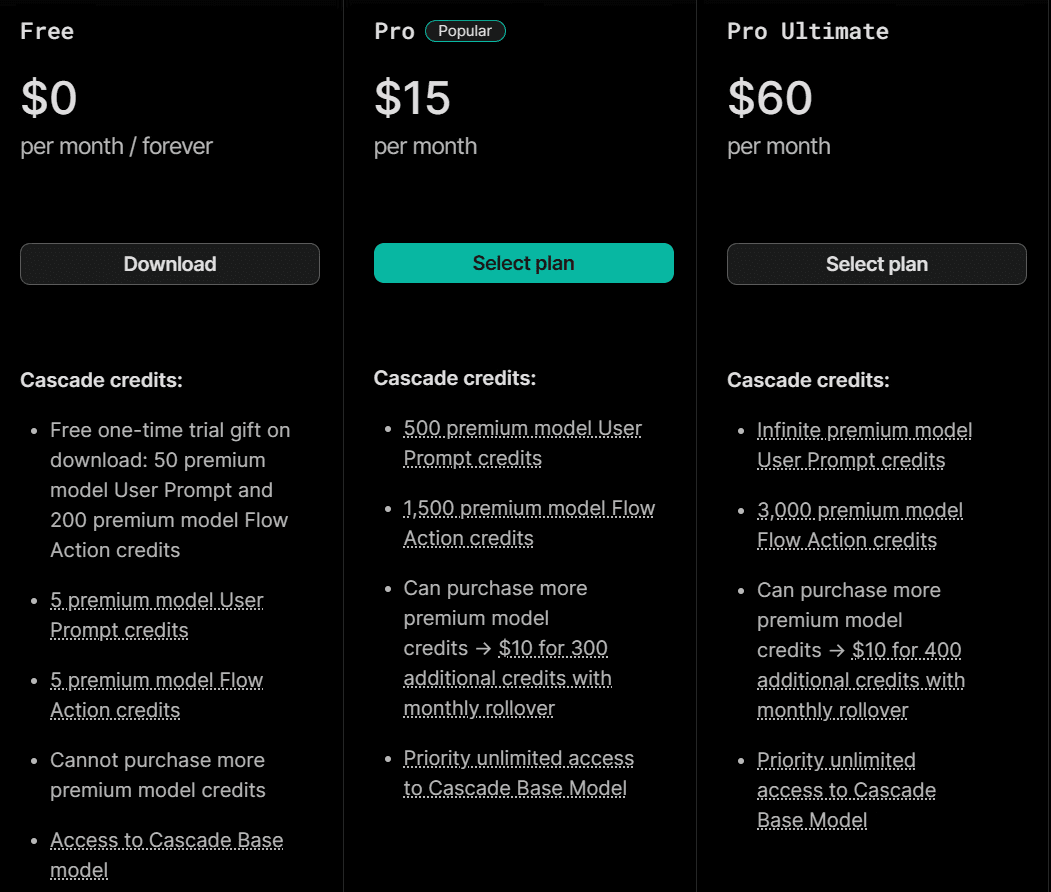
Windsurf revamped its pricing on December 6, introducing three individual plans: a Free plan, a Pro plan at $15/month, and a Pro Ultimate plan at $60/month. For teams, plans range from $35 to $90/user/month, with features like pooled credits and unlimited prompts in the higher tiers.
While Windsurf’s flexible pricing structure offers variety, its credit-based system - with separate limits for User Prompt credits and Flow Action credits - can feel like jargon, especially for beginners. Managing these credits may require some learning to get the most out of your plan.
Copilot
Copilot offers one of the simplest pricing models. Its free plan includes 2,000 completions and 50 chat requests. The Pro plan at $10/month provides unlimited completions, while Business at $19/user/month and Enterprise at $39/user/month scale well for teams.

Cursor offers the most straightforward pricing, while Windsurf provides flexible options with credits that may require closer management. Copilot remains the most budget-friendly option for individuals and teams alike.
Enterprise Security and Compliance: What Each Tool Actually Offers
All three tools have SOC 2 certification. GitHub Copilot Enterprise has the most mature compliance story for regulated industries, backed by Microsoft's existing certifications and enterprise agreements. Windsurf Enterprise offers FedRAMP High with on-premise deployment, the strongest option for government and highly regulated environments. Cursor offers Privacy Mode and a BYOK (bring your own key) option, with SOC 2 on the Business plan. No code retention is available on all three at their business tiers.
Requirement | Cursor | GitHub Copilot | Windsurf |
|---|---|---|---|
SOC 2 | Business plan | Business tier+ | All tiers |
No code in training | Privacy Mode | Business tier+ | All tiers |
IP indemnity | Business plan | Business tier+ | Teams tier+ |
On-premise | No (BYOK) | GitHub Enterprise Server | Enterprise tier |
FedRAMP | No | Available | Enterprise (High) |
GDPR | Yes | Yes | Yes |
HIPAA | No | Available | Available |
For teams in healthcare, finance, or government, GitHub Copilot Enterprise and Windsurf Enterprise are the options to evaluate. Cursor's BYOK approach works for teams that want to control the data pipeline through their own API keys, but it lacks the formal certifications regulated industries require.
[H2]
Performance Benchmarks: Real data from 2026
Cursor has a 72% code acceptance rate versus Copilot's 65% industry benchmark. In a March 2026 iBuildR Research test, Cursor completed a UI component in 2 prompting rounds, Windsurf in 3, Copilot in 5 with manual fixes. A 9-person startup 30-day pilot showed Cursor at 1.42x productivity on complex multi-file work and Windsurf at 1.38x overall, versus Copilot baseline at 1.0x. On large codebase migration tasks, Windsurf's Cascade outperformed Cursor on the first attempt.
The honest caveat: these numbers vary enormously based on codebase type, developer experience, and task complexity. Developers who review every AI suggestion carefully, which is the right approach, see very different productivity numbers than those who accept suggestions wholesale. Run your own 30-day pilot on your actual codebase. No benchmark test can replace that.
Which Tool Should Your Team Choose: The Honest Decision Guide
Choose Cursor if maximum AI capability is your priority and cost is secondary. Choose Windsurf if you want strong agentic capability at lower cost, need EU or FedRAMP compliance, or prefer Cascade's lower-intervention autonomous mode. Choose GitHub Copilot if your team uses JetBrains, your workflow is GitHub-native, or enterprise compliance and procurement simplicity matter more than raw capability.
Choose Cursor if:
You do complex, multi-file feature work on large codebases daily
Your team works primarily in VS Code
You want the most powerful agentic coding tool available and can justify $20–200/month
Maximum AI capability matters more than procurement simplicity
Choose Windsurf if:
You want roughly 80% of Cursor's capability at a lower price
EU compliance or FedRAMP High certification is a requirement
You prefer an autonomous tool that requires less steering on longer tasks
You're a solo developer or small team evaluating options (free tier available)
You're comfortable with the post-acquisition uncertainty
Choose GitHub Copilot if:
Your team uses JetBrains IDEs (IntelliJ, PyCharm, WebStorm, GoLand)
Your entire development workflow runs in GitHub — issues, PRs, CI/CD
You're in a regulated industry where Microsoft's compliance story is required
Enterprise procurement simplicity and predictable per-seat pricing matter
You want the issue-to-PR autonomous agent pipeline built into GitHub
Consider using multiple tools together: Many teams in 2026 combine tools — Cursor for complex day-to-day coding, Copilot for JetBrains or GitHub-native workflows. The tools don't conflict if you configure them correctly.
[H2]
The One Thing All Three Tools Miss, and Why it Matters
Cursor, Windsurf, and GitHub Copilot are all code generation and coding assistance tools. None of them are designed to review code written by other developers or AI agents. As 41% of all code is now AI-generated, the volume of code that needs review is increasing dramatically, and the code being generated has higher bug and vulnerability rates than human-written code. A separate code review layer is not optional for enterprise teams.
Studies show 45% of AI-generated code contains security vulnerabilities. AI coding tools are optimised to write code fast, not to review it thoroughly. Cursor's agent can self-review its own output, but self-review has a structural blind spot, models have difficulty catching their own errors with the same reliability they catch errors in code they didn't write.
This is the gap CodeAnt AI fills. While Cursor, Windsurf, and Copilot help your team write faster, CodeAnt AI reviews everything that goes into a pull request, whether it was written by a developer, Cursor's Composer, Windsurf's Cascade, or Copilot's Coding Agent. It reviews with full codebase context, catches security vulnerabilities across 30+ languages, enforces your organisation's specific standards, and integrates with GitHub, GitLab, Azure DevOps, and Bitbucket.
The question isn't which AI editor to choose. The real question is: once your team is writing code 40% faster, who's reviewing it?
Your AI coding tool writes the code. CodeAnt AI reviews it. Catch security vulnerabilities, enforce standards, and cut PR review time, across GitHub, GitLab, Azure DevOps, and Bitbucket. → Book a 20-minute demo

